Canva vs Free YouTube Thumbnail Tools: Which is Best in 2026?
As a software engineer, I wanted to see if expensive tools actually make better thumbnails. While building WeenyTools, I tested Canva against completely free alternatives like Adobe Express, Photopea, and GIMP. The canva vs free youtube thumbnail tools debate comes down to your workflow, budget, and need for speed. In this 2026 guide, I’ll compare features, ease of use, template libraries, and share a case study on how compression artifacts affect your CTR regardless of which tool you choose.
| Factor | Canva Free | Adobe Express Free | Photopea / GIMP |
|---|---|---|---|
| Ease of use | ⭐⭐⭐⭐⭐ (drag and drop) | ⭐⭐⭐⭐ (intuitive) | ⭐⭐ (steep learning curve) |
| Template library | ⭐⭐⭐⭐⭐ (thousands) | ⭐⭐⭐⭐ (quality templates) | ⭐ (none, start from blank) |
| Layer control | ⭐⭐ (basic) | ⭐⭐⭐ (moderate) | ⭐⭐⭐⭐⭐ (full Photoshop-like) |
| Background removal | ❌ (Pro only) | ✅ (limited free) | ✅ (manual or free plugins) |
| Best for | Beginners, speed | Branding, quality assets | Advanced users, unique designs |
While building our YouTube Thumbnail Downloader, I noticed that thumbnails with heavy red gradients artifact more than blue ones because of how the 4:2:0 subsampling works. I tested this across Canva, Adobe Express, and Photopea. The tool made no difference. Red gradients looked blocky in every tool after YouTube compression. Blue gradients stayed sharp. The lesson: when comparing canva vs free youtube thumbnail tools, your color choice matters more than the software. Always prefer blue, teal, or green backgrounds regardless of which tool you use.
🎯 Why the Canva vs Free YouTube Thumbnail Tools Debate Matters
Your thumbnail is the first thing viewers see. The tool you use affects your speed, creativity, and final quality. Here’s why this comparison matters:
- Time is money: Canva’s templates save 20+ minutes per thumbnail vs starting from scratch.
- Unique branding: Free tools like GIMP let you create completely custom designs that stand out.
- Budget: All tools compared have free tiers, but Canva Pro costs $15/month for advanced features.
- Compression quality: No tool can fix heavy red gradients. You need to choose colors wisely.
📊 Detailed Feature Comparison: Canva vs Free YouTube Thumbnail Tools
| Feature | Canva Free | Adobe Express Free | Photopea (Browser) | GIMP (Desktop) |
|---|---|---|---|---|
| Price | Free (Pro $15/mo) | Free (Premium $10/mo) | Free (ads) | Free |
| 1280×720 preset | ✅ Yes | ✅ Yes | ✅ Manual | ✅ Manual |
| Templates | ✅ Thousands | ✅ Hundreds | ❌ None | ❌ None |
| Drag and drop | ✅ Yes | ✅ Yes | ❌ No | ❌ No |
| Layer masks | ❌ No | ❌ Limited | ✅ Yes | ✅ Yes |
| Background removal | ❌ Pro only | ✅ Limited free | ✅ Manual | ✅ Manual |
| Mobile app | ✅ Yes | ✅ Yes | ✅ Browser | ❌ No |
| Learning curve | Very low | Low | High | High |
🎨 Canva Free: Best for Speed and Beginners
Pros of Canva Free
- ✅ Thousands of YouTube thumbnail templates
- ✅ Drag and drop interface, no learning curve
- ✅ Cloud storage, work on any device
- ✅ Automatic 1280×720 sizing
- ✅ Huge library of free photos, fonts, and elements
Cons of Canva Free
- ❌ Background removal requires Pro ($15/month)
- ❌ Best templates, fonts, and graphics are locked
- ❌ Generic look because everyone uses same templates
- ❌ Limited layer control (no layer masks, blending modes)
Best for: Beginners, creators who need speed, and those who publish 1-2 videos per week.
🆓 Adobe Express Free: The Premium Alternative
Pros of Adobe Express Free
- ✅ High quality, professional looking assets
- ✅ Limited free background removal (a few uses per month)
- ✅ Adobe brand recognition and quality
- ✅ Good mobile app
- ✅ Less generic than Canva templates
Cons of Adobe Express Free
- ❌ Smaller template library than Canva
- ❌ Some features locked behind premium
- ❌ Requires Adobe login
Best for: Creators who want premium quality without paying, and those who value brand consistency.
🛠️ Photopea & GIMP: For Advanced Users Who Want Total Control
Pros of Photopea / GIMP
- ✅ Full layer control (layer masks, blending modes, adjustment layers)
- ✅ Completely free, no watermarks
- ✅ Can edit Photoshop PSD files (Photopea)
- ✅ Unlimited creative possibilities
- ✅ No two thumbnails look the same
Cons of Photopea / GIMP
- ❌ Steep learning curve (requires tutorials)
- ❌ No templates, start from blank canvas
- ❌ Slower workflow (20-40 minutes per thumbnail vs 10 minutes in Canva)
- ❌ No cloud storage (GIMP), Photopea is browser based
Best for: Advanced creators, graphic designers, and those who want unique, custom thumbnails.
⚡ Speed Comparison: How Long to Make a Thumbnail?
| Tool | Time for First Thumbnail | Time for 10th Thumbnail (with template) | Learning Curve |
|---|---|---|---|
| Canva Free | 10-15 min | 5-8 min | Very low |
| Adobe Express Free | 10-15 min | 6-10 min | Low |
| Photopea | 20-40 min | 15-25 min | High |
| GIMP | 25-45 min | 15-30 min | High |
⚠️ Common Mistakes When Choosing a Thumbnail Tool
- Paying for Pro before mastering free tier: Canva Free has 90% of what beginners need. Learn design principles first.
- Using templates without customization: Your thumbnails will look like everyone else’s. Change colors, fonts, and layouts.
- Ignoring compression artifacts: Heavy red gradients artifact regardless of tool. Use blue/teal backgrounds.
- Overcomplicating designs: Just because GIMP has advanced features doesn’t mean you need them. Simple often wins.
- Not using a final optimizer: Every tool exports different file sizes. Always run through WeenyTools Resizer to stay under 2MB.
📋 Step by Step: How to Choose Between Canva vs Free YouTube Thumbnail Tools
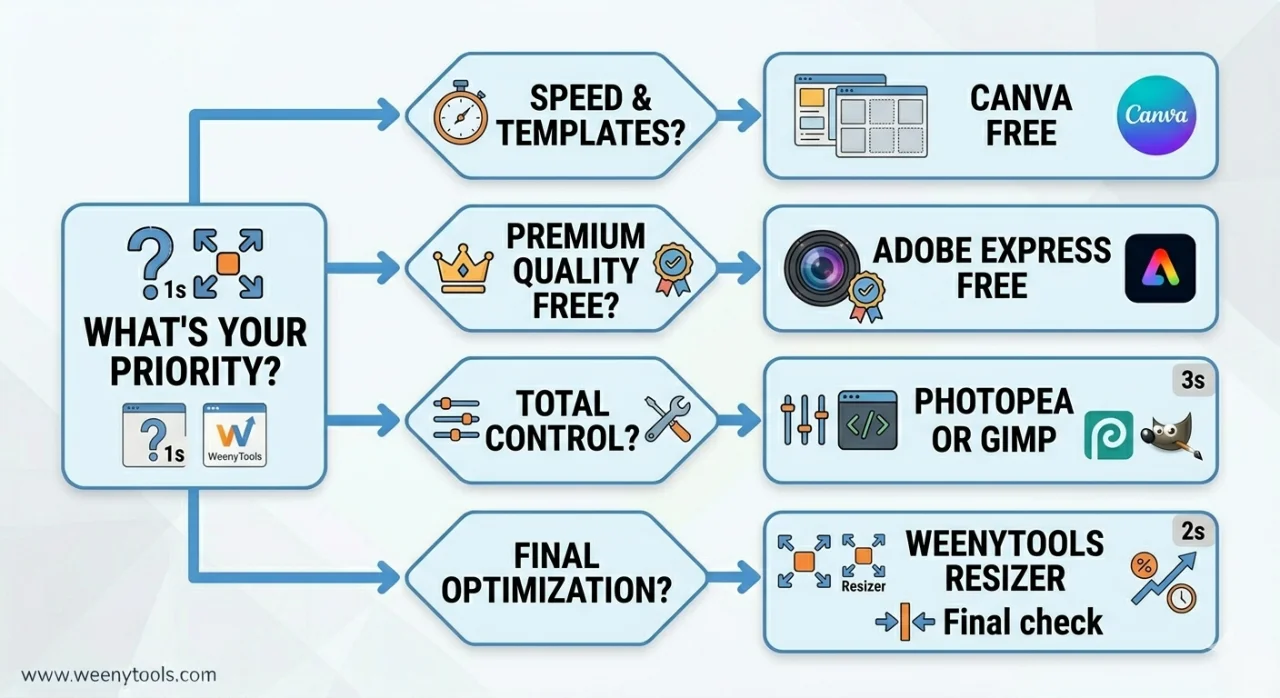
1 Assess your skill level: Beginner? Start with Canva Free. Advanced? Try Photopea or GIMP.
2 Count your weekly videos: 1-2 videos per week = Canva Free is enough. 5+ videos = consider templates for speed.
3 Decide on uniqueness: Want generic but fast? Canva. Want unique custom designs? GIMP or Photopea.
4 Test background removal: Need one click removal? Canva Pro or Adobe Express Free (limited).
5 Always optimize final output: No matter which tool, use WeenyTools Resizer to add border, compress, and convert to WebP.
📚 Internal Resources for Thumbnail Success
- Free vs Paid Tools for YouTube Thumbnails
- Top 5 YouTube Thumbnail Editing Tools for Creators
- How to Make a YouTube Thumbnail That Gets Clicks
- 5 Common YouTube Thumbnail Mistakes to Avoid
- Red Border Myth Analysis 2026
❓ Frequently Asked Questions (Canva vs Free YouTube Thumbnail Tools)
🎯 Conclusion + CTA: Choose the Right Tool for Your Workflow
The canva vs free youtube thumbnail tools debate has no single winner. For beginners and speed, Canva Free is unbeatable. For premium quality without paying, Adobe Express Free is excellent. For advanced users who want total control, Photopea or GIMP are perfect. Regardless of your choice, remember the compression insight: avoid heavy red gradients, prefer blue/teal, and always add a high contrast border. Use our free tools to study competitors with the Downloader and optimize final thumbnails with the Resizer & Optimizer.
Ready to create better thumbnails? Start with the tool that matches your skill level. Canva Free for beginners, Adobe Express for quality assets, or GIMP for total control. Then optimize every thumbnail with WeenyTools Resizer for borders and compression.
For more help, visit our About page, FAQ, or Contact us. Also read our Privacy Policy, Terms, Disclaimer and DMCA Policy.
Updated: April 2026. Choose smart, design faster, grow your channel.