Why Your YouTube Video Looks Washed Out After Export: Rec.709 Gamma Fix (2026)
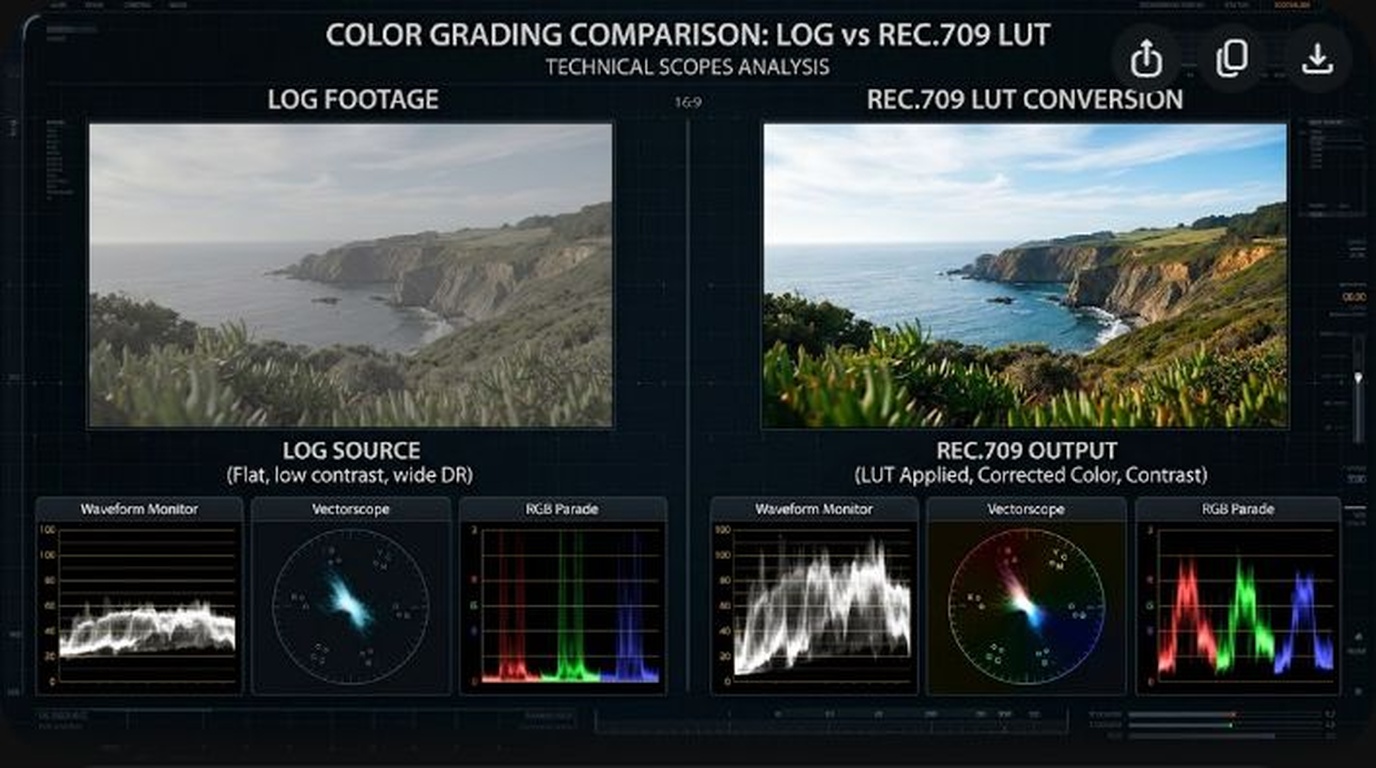
You spend hours meticulously color-grading your video in DaVinci Resolve or Adobe Premiere Pro. On your editing timeline, the contrast is punchy, shadows are rich and inky, skin tones possess a healthy golden glow, and the overall aesthetic looks cinematic. You export your master MP4 or MOV file, double-click it to open in QuickTime Player or upload it to YouTube, and your stomach sinks: the image looks dreadfully washed out. Your deep blacks have turned into a cloudy milky gray, contrast has dropped by 20%, and colors look pale and lifeless.
This baffling phenomenon—colloquially known across the film industry as the “QuickTime Gamma Shift” or the “Rec.709 Color Shift”—is one of the most widely misunderstood color-science issues in modern digital video production. It is not caused by YouTube compressing your video, nor is it a hardware flaw with your monitor. It is the direct result of a mathematical conflict between broadcast television standards, Apple’s macOS ColorSync color engine, and how web browsers interpret NCLC metadata tags. In this definitive 2026 guide, we explain the color science behind the gamma shift and provide the exact step-by-step calibration protocols for DaVinci Resolve and Premiere Pro to guarantee your colors look identical everywhere.
Key Takeaways: The Rec.709 Gamma Calibration Blueprint
- The Core Mathematical Conflict (Gamma 2.4 vs Gamma 1.96): Professional editing software defaults to Rec.709 Gamma 2.4, which was standardized by the ITU for television grading in dim reference suites. Apple’s macOS ColorSync engine, QuickTime, and Safari interpret standard Rec.709 video using a brighter Gamma 1.96 (sRGB / Rec.709-A) curve intended for brightly lit office environments.
- The NCLC Metadata Tagging Problem: When a video file lacks explicit NCLC color atom tags (specifically
1-1-1or1-2-1), macOS and web browsers make arbitrary assumptions about color transfer functions, lifting the shadow floor from 0 IRE to 16 IRE. - The DaVinci Resolve Solution: Setting your Project Color Space to Rec.709-A on macOS (or tagging Deliver page Gamma to Rec.709-A) forces QuickTime and Chrome to display your timeline grade with 100% pixel-accurate contrast.
- The Premiere Pro 2026 Solution: In Premiere Pro Preferences > Color, change Viewer Gamma from 2.4 (Broadcast) to 1.96 (QuickTime) to grade directly in the color space your viewers will see.
- Never Blindly Apply Compensation LUTs: Applying crude “gamma compensation” LUTs can crush your true black levels below 0 IRE, causing severe shadow clipping on Android phones, Windows PCs, and smart TVs.
Understanding the Color Science: Gamma 2.4 vs. Gamma 1.96
To solve the washed-out export puzzle, you must understand what “Gamma” actually represents. Human vision perceives brightness logarithmically rather than linearly; our eyes are far more sensitive to subtle differences in dark shadow details than in bright highlights. Gamma curves apply non-linear mathematical corrections so that digital sensors match human perception.
Back in 2011, the International Telecommunication Union (ITU) established BT.1886, which standardized the electro-optical transfer function (EOTF) for standard-definition and high-definition television. It mandated Rec.709 with a 2.4 Gamma power function. Gamma 2.4 was calculated under the strict assumption that viewers would watch television in a controlled, darkened living room (ambient luminance of roughly 5 lux).
However, when Apple designed macOS and the Retina Display ecosystem, they recognized that laptops, smartphones, and desktop computers are used in bright, brightly lit environments (offices, coffee shops, outdoors under sunlight). Apple programmed its system-level color engine, ColorSync, to decode Rec.709 video using an optical transfer characteristic of approximately Gamma 1.96 (roughly equivalent to a piece-wise sRGB curve).
Because Gamma 1.96 has a significantly brighter midtone curve than Gamma 2.4, ColorSync dynamically lifts your midtones and shadows when you open an MP4 file in QuickTime, Safari, or Chrome on macOS. What was a dark moody film grade in your timeline suddenly looks milky, desaturated, and washed out.
The Permanent Fix in DaVinci Resolve (Mac & Windows)
Blackmagic Design provides the most elegant, color-accurate solution to the QuickTime Gamma Shift by providing dedicated Rec.709-A (Rec.709 Apple) color space profiles that embed explicit Apple NCLC metadata tags inside the video container.
Method 1: Project Color Management (Recommended for macOS Editors)
- Open DaVinci Resolve and click the Project Settings gear icon (bottom-right corner).
- Navigate to the Color Management tab.
- Under Color Science, select DaVinci YRGB.
- Under Timeline color space, click the dropdown and select Rec.709-A.
- Set Output color space to Rec.709-A (or set to Same as timeline).
- Click Save.
- Now, what you see inside DaVinci’s timeline viewer will match QuickTime, Safari, and YouTube pixel-for-pixel.
Method 2: Deliver Page Metadata Tagging (For Windows & Broadcast Editors)
If you prefer to grade using standard Gamma 2.4 on a calibrated external reference monitor (via DeckLink or UltraStudio), you can force DaVinci to tag the exported MP4 file with Rec.709-A metadata without altering your internal color timeline:
- Navigate to the Deliver page.
- Under Render Settings > Video, expand Advanced Settings.
- Scroll down to find the two metadata tag dropdowns:
- Color Space Tag: Change from Same as Project to Rec.709.
- Gamma Tag: Change from Same as Project to Rec.709-A.
- Ensure Data Levels is set to Auto (or Video). Never select Full for standard 8-bit or 10-bit H.264/HEVC exports, as forcing Full levels causes illegal black clipping on non-computer displays.
- Add to Render Queue and export. The resulting MP4 contains the metadata atom
nclc 1 2 1, instructing macOS, QuickTime, and YouTube’s transcoder to maintain your exact timeline contrast.
The Permanent Fix in Adobe Premiere Pro (2026)
For years, Adobe Premiere Pro suffered from severe gamma shifts because its internal Program Monitor operated on Gamma 2.4 while macOS rendered exports at Gamma 1.96. In modern Premiere Pro releases, Adobe added native Color Management settings that eliminate the need for third-party compensation LUTs.
How to Calibrate Premiere Pro:
- Open Premiere Pro and go to Preferences > Color (on macOS: Premiere Pro > Settings > Color).
- Look for the section titled Color Management.
- Locate Viewer Gamma:
- Change it from 2.4 (Broadcast) to 1.96 (QuickTime) if you primarily produce content for YouTube, social media, and web viewing.
- Leave it on 2.4 (Broadcast) only if you are delivering master files for broadcast television or theatrical projection.
- Check the box labeled “Enable Display Color Management (requires GPU acceleration)”. This instructs Premiere Pro to read your computer monitor’s active ICC color profile, ensuring what you see on your timeline canvas is color-accurate.
- Click OK.
Color Space & Gamma Target Reference Matrix
| Delivery Platform | Standard Color Space | Target Gamma Curve | Recommended Output Tag |
|---|---|---|---|
| YouTube & Web Browsers (Chrome / Safari) | Rec.709 | Gamma 2.2 / 1.96 (sRGB) | Rec.709-A (NCLC 1-2-1) |
| Broadcast Television (Cable / Satellite) | Rec.709 / BT.1886 | Gamma 2.4 (Dark Room) | Rec.709 / Gamma 2.4 |
| Streaming Services (Netflix / Prime Video) | DCI-P3 or Rec.2020 | ST.2084 (PQ) / Gamma 2.4 | Deliver per network technical deliverable spec |
| Mobile Socials (TikTok / IG Reels / Shorts) | Rec.709 | Gamma 2.2 (OLED Display) | Rec.709-A (NCLC 1-2-1) |
Frequently Asked Questions (FAQ)
Why does my video look fine in VLC but washed out in QuickTime?
VLC Media Player operates on a cross-platform open-source rendering engine that completely bypasses Apple’s macOS ColorSync framework. VLC applies a standard Gamma 2.2 / 2.4 curve directly to your display, showing the raw contrast of the video. QuickTime Player, by contrast, is strictly tethered to ColorSync, which artificially brightens the gamma curve if the file lacks a Rec.709-A tag.
What happens if I use the “Gamma Compensation LUT”?
In older versions of Premiere Pro, creators applied a downloaded “QuickTime Gamma Compensation LUT” during export. This LUT manually darkened the image by a 0.05 gamma offset. While this made QuickTime look normal on a Mac, it severely crushed true blacks on Windows PCs, Android phones, and smart TVs, turning deep shadows into solid black blotches. Modern editors should use native Rec.709-A tagging instead of destructive LUT fixes.
Does Chrome on Windows have the washed-out bug?
No. Windows handles color management differently than macOS. On Windows, Google Chrome and Microsoft Edge use standard sRGB / Gamma 2.2 transfer characteristics. However, if your video is watched on a Mac running Chrome, Chrome queries the macOS system color profile, triggering the same ColorSync gamma shift unless your file is properly tagged with Rec.709-A.
What is the difference between Video Levels and Full Levels?
Video Levels (Limited Range: 16–235) is the standard for broadcast video, reserving the values 0–15 for sub-black and 236–255 for super-whites. Full Levels (0–255) uses the complete numerical dynamic range of an 8-bit raster. For YouTube uploads, always leave Data Levels on Auto in DaVinci Resolve. Setting it manually to Full when exporting standard H.264 video can cause video players to misinterpret black levels, creating either crushed shadows or milky gray contrast.
Will tagging Rec.709-A hurt playback on TVs and Android devices?
No. The Rec.709-A tag simply informs Apple ColorSync and compliant web browsers that the file was mastered for a computer display environment. Non-Apple platforms (like Android, Roku, smart TVs, and Windows PCs) gracefully fall back to standard BT.709 / Gamma 2.2 curves without clipping or distorting your creative color grade.