Best OBS Studio Settings for 1080p 60fps Recording (Zero Lag 2026)
Nothing destroys the perceived quality of a gaming tutorial, coding walkthrough, or high-energy software demonstration faster than micro-stutters, pixelated compression artifacts, and desynchronized audio. While Open Broadcaster Software (OBS Studio) is universally celebrated as the most powerful open-source recording suite on earth, its default configuration is tailored for conservative live streaming rather than pristine local video capture. Novice creators frequently select streaming-focused bitrates (CBR) or overburden their central processors (CPU) with software x264 encoding, resulting in catastrophic frame drops and sluggish gaming performance. In this comprehensive masterclass guide, we demystify the internal rendering pipeline of OBS Studio to deliver the best obs settings for 1080p 60fps recording, unlocking butter-smooth frame pacing, zero system lag, broadcast-level audio separation, and lossless visual fidelity across NVIDIA, AMD, and Intel hardware.
Key Takeaways: The Zero-Lag Local Recording Master Profile
| Configuration Parameter | NVIDIA GeForce (RTX 20/30/40) | AMD Radeon (RX 6000/7000) | Intel Arc / QuickSync |
|---|---|---|---|
| Target Encoder | NVIDIA NVENC AV1 / HEVC (NVENC H.265) | AMD HW AV1 / HEVC (H.265) | Intel QuickSync AV1 / HEVC |
| Rate Control Method | CQP (Constant Quantization) | CQP (Constant Quantization) | CQP (Constant Quantization) |
| CQ Level / Target Target | CQ 16 (Near Lossless) to CQ 18 (Balanced) | CQ 18 to CQ 20 | CQ 18 to CQ 20 |
| Keyframe Interval | 2.0 Seconds (Standard NLE scrubbing) | 2.0 Seconds | 2.0 Seconds |
| Preset Tuning | P6: Slower (Better Quality) | Quality / High Quality | Quality |
| Audio Format & Bitrate | Custom Multi-Track AAC @ 320 kbps | Multi-Track AAC @ 320 kbps | Multi-Track AAC @ 320 kbps |
1. The Fundamental Recording Mistake: Why Streaming Settings Ruin Local Recordings
When creators configure OBS Studio, the majority search for “best bitrate” on Reddit or Google and find recommendations like “6,000 kbps CBR” or “8,000 kbps CBR.” What these creators fail to realize is that Constant Bitrate (CBR) is an artificial compromise engineered exclusively for live streaming platforms like Twitch and YouTube Live, where network bandwidth constraints dictate a rigid data ceiling.
When you record locally to a fast NVMe solid-state drive (SSD), your network bandwidth is completely irrelevant. Your drive can effortlessly sustain write speeds exceeding 2,000 megabytes per second. Forcing your local recording into a static 8,000 kbps CBR bottle creates two devastating problems:
- Pixelation During High Motion: In fast-action gaming or rapid screen pans, 8,000 kbps is mathematically insufficient to describe rapid pixel changes across 60 frames per second, resulting in murky block artifacts, color banding, and blurred edges.
- Wasted Disk Space During Static Scenes: When displaying a static web browser, code editor, or pause menu, feeding a continuous 8,000 kbps stream burns through gigabytes of storage writing identical, redundant data.
The solution is transitioning to Constant Quantization Parameter (CQP). CQP allows the video encoder to dynamically throttle bitrate from 2,000 kbps during stationary dialogue up to 80,000 kbps during frantic explosions, ensuring consistent visual clarity frame by frame without wasting a single byte of storage.
2. Hardware Acceleration Benchmarks: NVENC AV1 vs. HEVC vs. AMD AMF vs. x264
Modern graphics cards house dedicated silicon chips specifically engineered to handle video encoding completely independent of the 3D graphics rendering pipeline. On NVIDIA cards, this dedicated hardware block is called the NVENC engine; on AMD cards, it is known as AMF / VCN; and on Intel hardware, it is QuickSync Video (QSV).
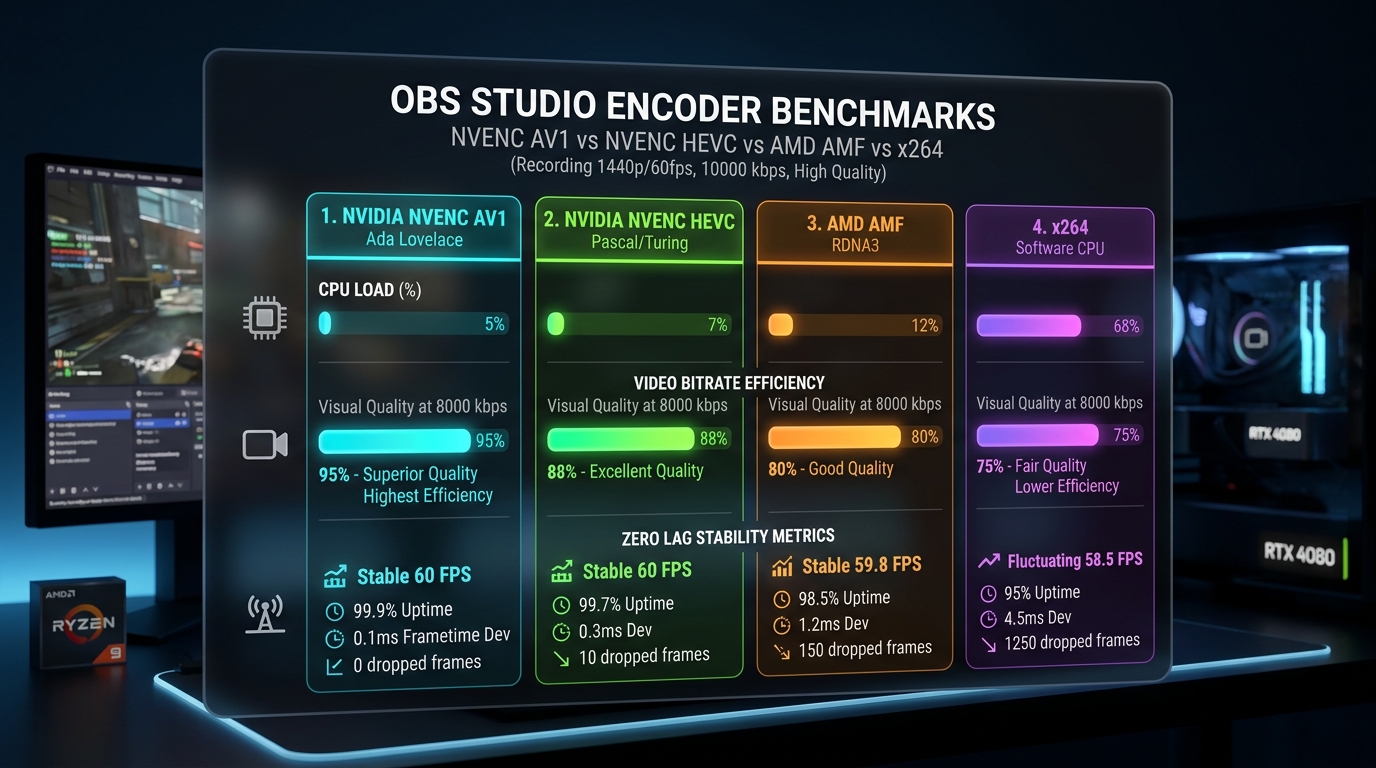
Here is how the primary encoding technologies perform under heavy gaming and multitasking workloads:
- NVIDIA NVENC AV1 (RTX 40 Series / Ada Lovelace): The pinnacle of modern consumer encoding. Delivers roughly 40% superior compression efficiency compared to H.264, producing razor-sharp fine details at remarkably compact file sizes while consuming less than 5% total system overhead.
- NVIDIA NVENC HEVC / H.265 (RTX 20, 30 & GTX 1660 Series): The premier standard for all modern creators without RTX 40 hardware. Far superior to legacy H.264, providing rich color gradations and immaculate text sharpness with virtually zero impact on in-game frame rates.
- AMD AMF HEVC (RDNA 2 & RDNA 3): Vastly improved on modern Radeon graphics cards (RX 6000/7000 series). Excellent performance when paired with CQP rate control, eliminating previous generation micro-stuttering issues.
- x264 Software (CPU Encoding): Obsolete for local 60fps recording on modern systems. Forcing your primary CPU cores to encode 1080p 60fps video while simultaneously running high-demand games causes extreme thermal throttling, dropped frames, and input latency. Never use x264 unless your computer lacks a dedicated graphics card.
3. Step-by-Step Output Configuration for Pristine 1080p 60fps
To implement the definitive zero-lag recording profile, open OBS Studio and navigate to Settings > Output. At the top of the window, change the Output Mode dropdown from Simple to Advanced, then select the Recording tab.
• Type: Standard
• Recording Format: MKV (Matroska) or Fragmented MP4. Critical Rule: Never record directly to standard MP4! If your computer crashes, freezes, or experiences a power surge, standard MP4 files corrupt completely and become unrecoverable. MKV files preserve every millisecond recorded up to the exact moment of a crash.
• Video Encoder: Select NVIDIA NVENC HEVC (or AV1 if available on RTX 40 / Intel Arc / Radeon 7000).
• Audio Tracks: Check boxes 1, 2, and 3 (Enables separate audio tracks for mic, desktop, and Discord).
• Rate Control: CQP
• CQ Level: Set to 16 for ultra-high visual fidelity, or 18 for an exceptional balance between visual quality and file size. Lower numbers equal higher quality (0 is uncompressed lossless; 51 is maximum compression).
• Keyframe Interval: Set to 2 s (Ensures smooth, instantaneous scrubbing across your video editing timeline).
• Preset: P6: Slower (Better Quality) or P5: Slow (Good Quality). Avoid P7 unless you have a dedicated secondary GPU, as P7 provides diminishing visual returns for increased encoder latency.
• Tuning: High Quality
• Multipass Mode: Two Passes (Quarter Resolution)
• Profile: Main (or Main 10 if working with 10-bit HDR pipelines)
• Look-ahead & Psycho Visual Tuning: Check Psycho Visual Tuning (Optimizes bit distribution for human eye perception); leave Look-ahead unchecked for fast gaming.
4. Video Tab & Canvas Scaling: Eliminating Blur and Aliasing
Next, click on the Video tab in the left settings panel. Proper canvas alignment prevents unnecessary computational scaling that introduces blurry fonts and aliased jagged lines.
- Base (Canvas) Resolution: Set to your monitor’s native desktop resolution (typically
1920x1080for 1080p screens, or2560x1440for 1440p displays). - Output (Scaled) Resolution: If your base canvas is 1080p, set this to
1920x1080. If you match base and output resolutions, OBS disables its internal downscaler, conserving GPU cycles and preserving pixel-perfect sharpness. - Downscale Filter: If you must downscale (e.g., from 1440p down to 1080p), select Bicubic (Sharpened scaling, 16 samples). While Lanczos (36 samples) is theoretically sharper, Bicubic delivers virtually indistinguishable clarity during motion while avoiding ringing artifacts and consuming significantly fewer GPU shader resources.
- Common FPS Values: Set to 60. If recording cinematic talking-head tutorials or slow-paced presentations where motion smoothness is secondary, 30 FPS can be used, but 60 FPS is non-negotiable for gaming and software demonstrations.
5. Multi-Track Audio Separation Architecture
One of the most disastrous amateur recording errors is baking your microphone audio and desktop game sounds into a single stereo audio track. If your in-game volume unexpectedly drowns out your vocal explanation during an intense scene, a single mixed track makes post-production fixing impossible. You cannot turn down the game without muting your own voice.
OBS Studio natively supports recording up to six discrete, independent audio channels simultaneously into your MKV container:
1. Open the Edit > Advanced Audio Properties dialog inside OBS Studio.
2. In the track matrix checkboxes on the far right:
• Track 1 (Master / Preview): Check Desktop Audio AND Microphone. (Used for instant video playback in VLC/Windows Media Player).
• Track 2 (Clean Microphone Track): Check ONLY your Microphone input. Uncheck all other sources.
• Track 3 (Game / Desktop Sound): Check ONLY Desktop Audio / System Sound. Uncheck all other sources.
• Track 4 (Discord / Communications): Check ONLY your VoIP chat source (if recording with teammates).
When you import this recorded MKV file into DaVinci Resolve, Premiere Pro, or CapCut, your timeline automatically unpacks into separate audio layers, allowing you to mute, amplify, EQ, or remove background game audio with total creative independence!
6. Studio-Grade Audio Filters: Vocal EQ, Noise Suppression & Limiting
To ensure your vocal track sounds like a commercial broadcast straight out of OBS without requiring hours of tedious post-processing, click the gear icon on your Microphone audio mixer bar and select Filters. Stack these four real-time audio filters in this precise top-to-bottom order:
- Filter 1: Noise Suppression (RNNoise): Select the RNNoise (Good quality, more CPU usage) method. RNNoise uses a trained recurrent neural network to surgically eliminate steady fan hums, computer case noises, and distant air conditioners while preserving vocal frequencies with zero robotic artifacting.
- Filter 2: 3-Band Equalizer: Boost the High frequency band by
+1.5 dBto add crisp vocal presence and clarity. Drop the Low frequency band by-2.0 dBto clean up muddy chest reverberation. - Filter 3: Compressor: Configure with Ratio:
3.00:1, Threshold:-18.00 dB, Attack:6 ms, Release:60 ms, and Output Gain:+3.0 dB. This automatically reins in sudden shouts of excitement while boosting softer spoken words. - Filter 4: Limiter (Mandatory): Set Threshold to
-1.5 dBand Release to60 ms. A brickwall limiter prevents your voice from ever exceeding digital zero, permanently banishing ear-piercing microphone clipping and distortion.
7. Diagnosing and Eliminating the 3 Types of OBS Lag
When creators report that their OBS recording is laggy, they frequently misdiagnose the underlying bottleneck. In OBS Studio, lag falls into three distinct technical categories, each requiring a completely different troubleshooting remedy:
| Lag Classification | Underlying Hardware Cause | OBS Log File Indicator | Definitive Technical Fix |
|---|---|---|---|
| Rendering Lag | GPU 100% utilized by game engine | “Number of frames dropped due to rendering lag: X%” | Cap game frame rate (e.g. 120 FPS), run OBS as Administrator, enable Windows Game Mode |
| Encoding Lag | Hardware encoder queue overloaded | “Number of frames dropped due to encoding lag: X%” | Lower Preset from P7 to P6/P5, reduce CQ level slightly, disable Look-ahead |
| Refresh / V-Sync Stutter | Mismatch between monitor refresh rate (144Hz) and OBS (60Hz) | Zero dropped frames in logs, but playback appears choppy | Lock monitor refresh rate to a multiple of 60 (120Hz/240Hz) or enable G-Sync windowed mode |
The Administrator Privilege & Windows Game Mode Trick
By far the most common cause of recording lag is running games with uncapped frame rates. Modern games attempt to consume 100% of available GPU rendering power. When your GPU is pinned at 99% usage, Windows denies OBS the tiny 2% of GPU shader power it needs to compose video frames before sending them to the NVENC encoder, causing catastrophic rendering frame drops.
To fix this permanently:
- Run OBS as Administrator: Right-click your OBS Studio desktop shortcut, select Properties > Compatibility, and check Run this program as an administrator. This grants OBS high-priority thread allocation in the Windows DWM (Desktop Window Manager) kernel scheduler, guaranteeing GPU compositor priority over background games.
- Enable Windows Game Mode: In Windows 11 and modern Windows 10 builds, keep Game Mode toggled ON. Microsoft updated Game Mode specifically to prioritize GPU scheduling for broadcast and recording processes running with administrative privileges.
- Cap In-Game Frame Rates: Never run games completely uncapped at 400 FPS while recording. Cap your in-game frame rate to match your monitor’s refresh rate (120 FPS, 144 FPS, or 240 FPS) using NVIDIA Control Panel or in-game frame limiters. This leaves 5% to 10% of GPU headroom for OBS to operate effortlessly.
8. Remuxing MKV to MP4 in One Second (Zero Quality Loss)
Because recording directly to MP4 risks corrupting your entire session during a sudden crash, recording in MKV is mandatory. However, some video editors (like older versions of Sony Vegas or quick mobile viewers) do not natively accept MKV files.
Do NOT run your MKV file through slow transcoding software like Handbrake, which degrades video quality and takes twenty minutes to re-encode! Instead, use OBS Studio’s built-in remuxer:
- Inside OBS Studio, click File > Remux Recordings.
- Drag and drop your recorded MKV file into the dialog window.
- Click Remux. In under two seconds, OBS extracts the raw H.265/AV1 video and AAC audio streams from the MKV container and wraps them into a pristine MP4 container with zero re-encoding and zero quality degradation.
- Automate Remuxing: Navigate to
Settings > Advanced > Recordingand check Automatically remux to mp4. OBS will automatically perform this instant container swap the moment you click “Stop Recording”!
9. Advanced Color Management: Rec.709 vs. Rec.2100 HDR for YouTube
Standard video capture operates in standard dynamic range (SDR) utilizing the Rec.709 color space with limited dynamic range. However, creators running modern HDR displays (OLED gaming monitors, Apple Liquid Retina XDR, or Mini-LED panels) frequently encounter washed-out recordings because their game outputs in 10-bit HDR while OBS captures in 8-bit SDR.
To configure OBS for pristine color fidelity:
- For Standard SDR Workflows (Default Recommendation): In
Settings > Advanced > Video, set Color Format to NV12, Color Space to Rec. 709, and Color Range to Limited. While beginners instinctively choose “Full” range, setting color range to Full in OBS causes crushed shadows and clipped highlights in video editors and web browsers unless custom matrix conversions are applied. Limited (16-235) is the universal broadcast standard that maps perfectly to YouTube’s ingestion engines. - For True 10-Bit HDR Recording: Set Color Format to P010 (10-bit), Color Space to Rec. 2100 (PQ), and encoder to HEVC Main 10 or AV1 Main 10. YouTube natively supports HDR uploads, awarding your video the luminous “HDR” badge in video player quality menus, providing breathtaking contrast and peak highlights up to 1,000 nits.
10. Pro VST Plugin Integration for Studio-Grade Audio
While OBS Studio’s built-in audio filters are effective, integrating third-party 64-bit VST 2.x audio plugins allows you to achieve the exact vocal timbre heard on major podcast networks and premium YouTube channels without paying a dime:
• Reaper ReaPlugs (ReaEQ & ReaComp): Lightweight, zero-latency 64-bit VST suite. ReaEQ provides a visual parametric graphical interface where you can sculpt precise notch filters to remove room resonance frequencies (e.g. cutting 450Hz boxiness).
• TDR Nova (Tokyo Dawn Records): A dynamic equalizer that only cuts harsh vocal sibilance (de-essing at 5kHz to 8kHz) when your voice gets loud, keeping vocal warmth completely intact during calm speech.
• Rough Rider 3 (Audio Damage): A vintage-style compressor that adds punch, saturation, and broadcasting presence to male and female vocal cords alike.
To load VST plugins into OBS, download the 64-bit DLL files and place them into C:\Program Files\Common Files\VST2. In OBS, click your microphone’s filter menu, click + > VST 2.x Plug-in, and select your plugin from the dropdown menu.
11. Dual-PC vs. Single-PC Recording Architectures
A perennial question among competitive creators is whether investing in a secondary “dedicated streaming/recording PC” with a capture card (like the Elgato 4K Pro) is necessary in 2026. Five years ago, when CPU encoding dominated, dual-PC setups were virtually mandatory for competitive esports titles.
Today, with hardware-dedicated encoders (NVENC Ada Lovelace, AMD RDNA 3, and Intel QuickSync), single-PC recording performance is so hyper-optimized that a secondary computer is completely unnecessary for 99% of creators. The dedicated silicon encoder operates on independent electrical circuits on your GPU die. It does not steal rendering cores, CUDA units, or shader clocks from your game. By running OBS as Administrator, locking in-game frame rates to realistic targets, and utilizing CQP rate control, a single modern PC achieves identical frame pacing to a dual-PC rig with zero desk clutter, zero capture card latency, and thousands of dollars saved in hardware costs.
12. Profile and Scene Collection Backup Architecture
Few experiences are more demoralizing than spending three hours tuning your audio filters, scene nesting hierarchies, and encoder parameters, only to have a corrupted Windows registry or GPU driver crash reset OBS to factory defaults. OBS Studio separates configuration into two distinct files: Profiles (which store video, audio, bitrate, and encoder settings) and Scene Collections (which store visual graphics, webcam positions, overlays, and sources).
To secure your production environment: Navigate to Profile > Export and save your master recording profile to an external flash drive or cloud backup folder. Repeat this process under Scene Collection > Export. If you ever upgrade your graphics card, reinstall Windows, or switch to a new laptop, you can re-import your entire studio configuration in three seconds with identical bitrates, filters, and audio channels preserved perfectly.
13. Dedicated Hotkeys for Chapter Markers and Instant Replay
To accelerate your post-production editing workflow, configure dedicated global hotkeys inside Settings > Hotkeys:
- Start/Stop Recording: Assign to distinct, non-conflicting keys (such as
F9to start,F10to stop) rather than a single toggle key. This prevents accidental stoppages during high-intensity gameplay. - Replay Buffer (Instant Replay): In
Settings > Output > Replay Buffer, enable a 60-second replay buffer. Assign a hotkey (e.g.,Ctrl+F12) to save the buffer. When an unexpected viral moment occurs during casual practice, pressing this key instantly dumps the last 60 seconds of pristine 60fps video to your drive without needing to record hours of unused footage.
Frequently Asked Questions
CQP (Constant Quantization Parameter) is the gold-standard rate control for local video recording. Unlike CBR, which imposes an artificial bitrate ceiling, CQP dynamically adjusts bitrate to match scene complexity, guaranteeing flawless visual quality during intense motion while saving storage during static scenes.
This is almost always caused by GPU rendering starvation. When a game runs uncapped, it consumes 99% of your GPU, starving OBS of the minimal processing power needed to composite frames. To fix this, run OBS as Administrator and cap your in-game frame rate to leave 5% to 10% GPU overhead.
Yes. If you have an NVIDIA RTX 40-series card, AMD RX 7000-series card, or Intel Arc GPU, AV1 provides roughly 40% superior compression efficiency over H.264 and about 15% better efficiency than HEVC, resulting in smaller file sizes at identical visual fidelity.
Always record in MKV. If your computer crashes, freezes, or loses power while recording an MP4, the file header is never finalized, destroying the entire video. MKV files are immune to crashes because each frame is written independently. You can automatically remux MKV to MP4 in OBS with zero quality loss.
For most creators, a CQ level of 16 to 18 offers visually lossless quality for YouTube uploads. Lower values (like CQ 14) produce massive file sizes with virtually zero perceptible visual improvement, while values above 22 introduce noticeable compression noise during fast camera movement.