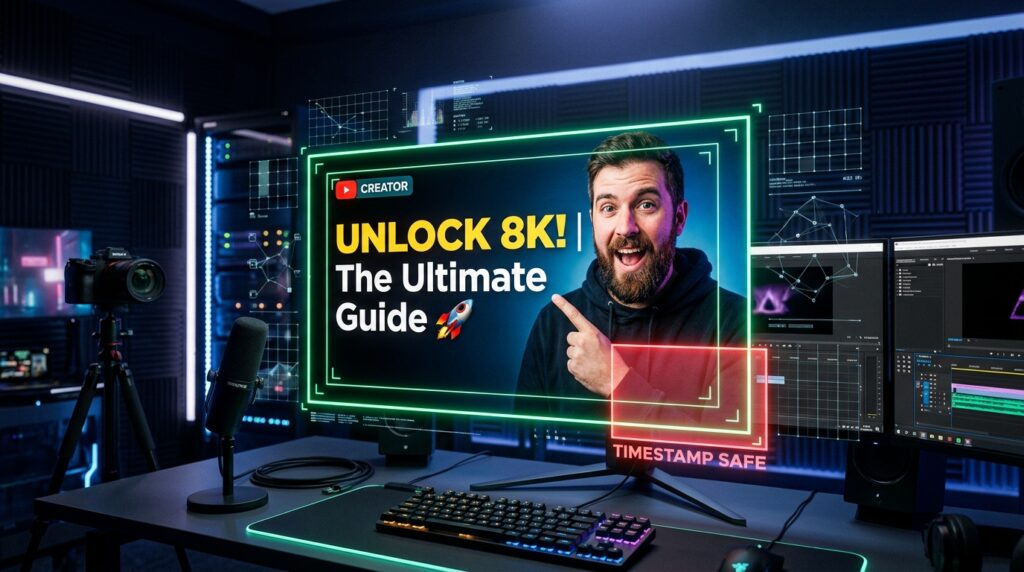
YouTube Thumbnail Safe Zone Guide 2026: Avoid Covered Text & Badges
In the fiercely competitive landscape of YouTube packaging, your video thumbnail is the single most decisive factor determining your channel’s organic click-through rate (CTR) and initial algorithmic velocity. A creator can spend forty hours researching, shooting in 4K resolution, and mastering broadcast-grade audio, but if the packaging fails to communicate immediate value within the two-hundred-millisecond cognitive window a viewer spends scanning their homepage feed, those production hours are squandered. One of the most widespread yet completely avoidable design catastrophes is placing critical typography, emotional facial expressions, or key visual subjects in the periphery where YouTube’s dynamic platform user interface (UI) elements cover them up. In this masterclass guide, we establish the definitive mathematical blueprints for the youtube thumbnail safe zone across mobile feeds, desktop browsers, living-room Smart TVs, and side-rail recommendation columns to guarantee your thumbnails remain 100% legible and visually magnetic on every screen.
Key Takeaways: YouTube Thumbnail Safe Zone Specifications (1280×720 Canvas)
| Interface Overlay Zone | Canvas Location | Pixel Danger Boundary | Critical Content Permitted |
|---|---|---|---|
| Timestamp Duration Badge | Bottom-Right Corner | Right 240px × Bottom 120px | Zero text, zero focal faces (Background graphic only) |
| Watch History Red Progress Bar | Bottom Edge Full Width | Bottom 18px Full Horizontal Width | Zero bottom-hugging text or fine subtitles |
| Watch Later / Queue Hover Overlay | Top-Right Corner (Desktop) | Right 160px × Top 140px | Non-essential atmospheric background only |
| Channel Avatar & Live Indicator | Top-Left / Bottom-Left (Mobile & TV) | Left 140px × Top/Bottom 110px | Non-essential graphics; avoid primary logo placement |
| The Master Central Safe Zone | Center & Center-Left Region | Padding 80px Top/Bottom, 120px Left/Right | High-contrast headline typography, expressive subject faces |
1. The Anatomy of Platform UI Overlays: What Actually Covers Your Art
When you design a graphic inside Adobe Photoshop, Canva, Figma, or Affinity Designer, you are working on a clean, pristine 16:9 canvas with zero obstructions. You carefully balance colors, craft drop shadows, and align text. However, the moment your file is uploaded to YouTube’s Content Delivery Network (CDN), it is instantly placed inside dynamic client application shells that render multiple layers of native interface elements directly over your artwork.
These native UI overlays are not static; their physical size, opacity, and positioning vary wildly depending on whether a viewer is browsing on an iPhone in portrait mode, an iPad in landscape mode, a 1440p desktop gaming monitor running Google Chrome in dark mode, or a 65-inch 4K living-room Smart TV running the YouTube TV app. Understanding exactly how each native element renders is the first prerequisite to engineering unshakeable thumbnail compositions.
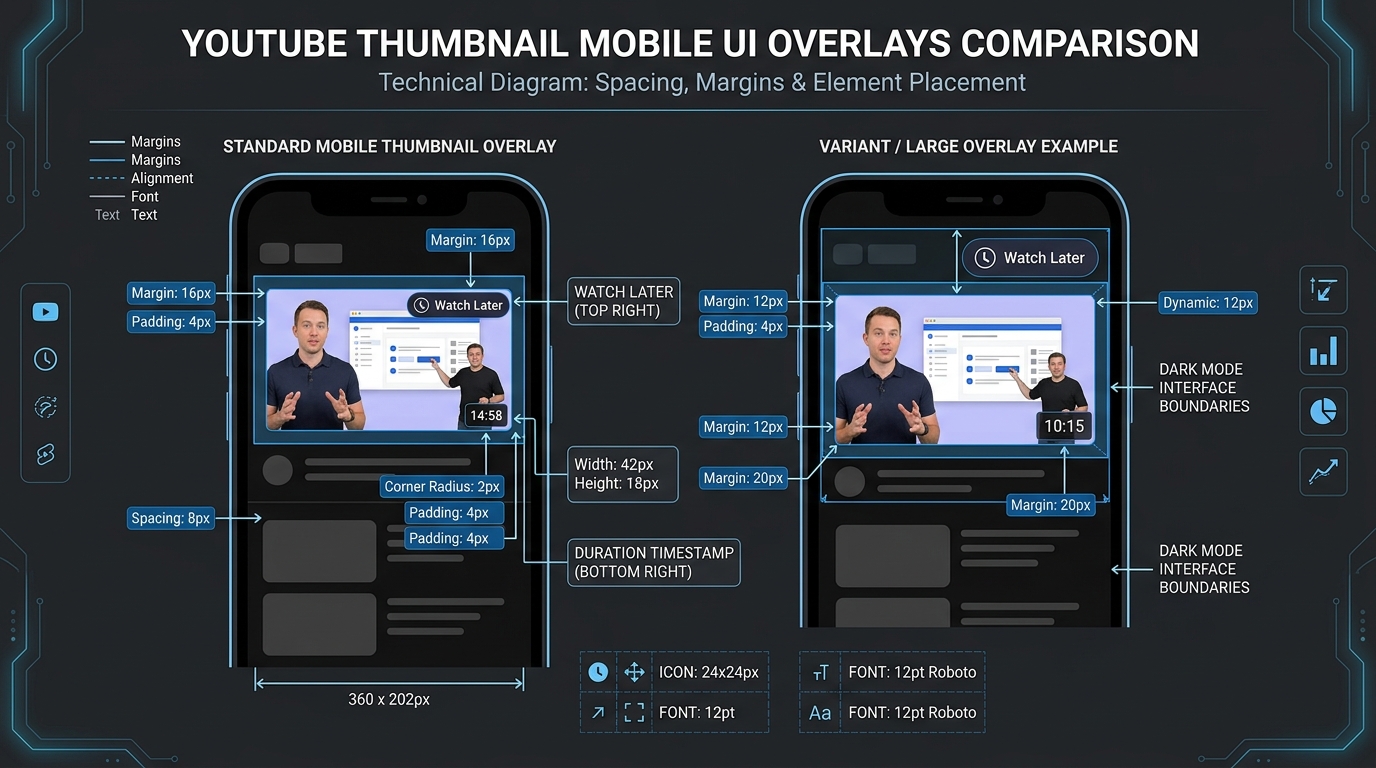
Let us dissect each native interface obstruction that threatens your visual real estate:
A. The Duration Timestamp Badge (The Bottom-Right Graveyard)
The time duration badge (for example, 14:28 or 1:04:12) is permanently stamped on every video thumbnail across every client surface. On standard mobile applications, this badge is rendered with solid dark pill styling, bold white typography, and native padding. On a 1280×720 canvas, the physical space consumed by this pill spans up to 240 pixels horizontally from the right edge and 120 pixels vertically from the bottom edge. If your headline text extends into this bottom-right quadrant, letters will be clipped, rendering words unreadable (e.g., turning “BEST PRO TIPS” into “BEST PRO T…”).
B. The Watch Later and Queue Action Overlays (Top-Right Desktop Hover)
When desktop users glide their cursor across video feeds, YouTube automatically manifests high-contrast icon buttons in the upper-right corner: the “Watch Later” clock icon and the “Add to Queue” playlist icon. While these buttons are semi-translucent until hovered, their presence creates visual clutter that competes with any text or branding placed along the upper-right perimeter.
C. The Red Watch History Progress Bar (The Bottom Border Trap)
When returning subscribers or browse visitors have previously watched a portion of your video (or your other uploads), YouTube renders a solid red playback bar across the bottom border of the thumbnail. This bar has a vertical height equivalent to roughly 12 to 18 pixels on a 720p canvas. If you position subtitles, disclaimers, or subtle secondary text hugging the very bottom boundary of your graphic, the red bar slices directly through the baseline of your letters.
D. “Live” and “Premiere” Badges (Top-Left and Bottom-Left)
If you host scheduled live broadcasts or YouTube Premieres, automated red “LIVE” badges or gray countdown widgets attach to either the top-left or bottom-left corner of the thumbnail. Anticipating these badges prevents your channel branding or facial profile from being awkwardly bifurcated by system notifications.
2. The Mathematical Safe Zone Blueprint: Pixel Coordinates for 720p, 1080p, and 4K
To guarantee that your graphic survives YouTube’s dynamic cropping and responsive scaling without text loss, adhere strictly to the standardized pixel bounding boxes outlined below. While YouTube recommends an upload resolution of 1280×720 pixels, many advanced creators design at 1920×1080 (Full HD) or 2560×1440 (2K QHD) to maintain razor-sharp vector rasterization on high-density Retina displays.
For Standard 1280 × 720 Canvas:
• Bottom-Right Danger Zone: X: 1040 to 1280 px | Y: 600 to 720 px (Reserve completely empty of focal points)
• Top-Right Danger Zone: X: 1120 to 1280 px | Y: 0 to 140 px
• Bottom Edge Buffer: Y: 700 to 720 px (Horizontal full width)
• Prime Safe Working Envelope: X: 80 to 1020 px | Y: 60 to 600 px
For High-Density 1920 × 1080 Canvas:
• Bottom-Right Danger Zone: X: 1560 to 1920 px | Y: 900 to 1080 px
• Top-Right Danger Zone: X: 1680 to 1920 px | Y: 0 to 210 px
• Bottom Edge Buffer: Y: 1050 to 1080 px (Horizontal full width)
• Prime Safe Working Envelope: X: 120 to 1530 px | Y: 90 to 900 px
When setting up guide rules in your editing software, configure a 10% safety margin around all four canvas borders, and expand the right-hand margin to 20% in the bottom quadrant. This creates a visual perimeter that naturally guides your artistic layout toward high-visibility zones.
3. The 3-Element Composition Rule for Maximum Click-Through Rate
A frequent error among novice thumbnail designers is attempting to cram too much narrative detail into a single image: four paragraphs of text, three different software logos, multiple arrows, and two tiny character cutouts. When scaled down to the size of a postage stamp on a smartphone screen (typically around 320×180 pixels or smaller), visual noise collapses into an illegible muddy blur.
Top-performing YouTube creators adhere religiously to The 3-Element Composition Rule:
- Element 1: The Human Emotional Subject (The Anchor): A clearly defined person exhibiting high-intensity emotion (shock, curiosity, delight, intense focus, skepticism) with eyes directed toward the focal subject or looking straight down the camera lens at the viewer. Position this subject on either the extreme left or center-left of the canvas.
- Element 2: The High-Contrast Hook Object (The Curiosity Trigger): A physical product, a dramatic transformation result, a software UI screenshot, or a mystery object with dramatic rim lighting and drop shadows that visually validates the title’s promise.
- Element 3: The 3-to-4 Word Punchline Text (The Emotional Amplifier): Maximum 3 to 4 words rendered in massive, heavy-weight typography (such as Montserrat Black, Bebas Neue, Impact, or Futura Bold). This text must NEVER simply repeat the video title word-for-word; it must complement the title by introducing friction, curiosity, or contrast.
By restricting your composition strictly to these three elements, you preserve generous amounts of negative space. Negative space provides visual breathing room, allowing the human eye to parse the core narrative instantly during rapid thumb-scrolling.
4. Typography Placement Science: Left-Aligned Hierarchy and Readability
Because Western written language is scanned from left to right, human visual tracking naturally enters the thumbnail canvas from the upper-left quadrant. Therefore, positioning your primary typography along the left-hand third or center-left aligns directly with instinctual eye movement.
Furthermore, positioning text on the left side of the canvas provides absolute immunity against the bottom-right timestamp badge. Even if your video is a two-hour documentary where the timestamp badge spans four numerical digits and two colons (02:14:55), your headline on the left remains completely uncompromised.
Contrast Engineering for Mobile Thumbnails
To ensure your text remains legible across diverse viewing conditions, implement these contrast standards:
- Solid Stroke Borders (Outline): Apply an external stroke border of 8 to 14 pixels (on a 720p canvas) using high-contrast colors (e.g., pure white text with a solid dark charcoal or black stroke).
- Directional Gaussian Drop Shadows: Add a soft, feathered black drop shadow with 80% opacity, 120-degree angle, and a blur radius of 18 to 24 pixels. This visually lifts the letters off complex or noisy photo backgrounds.
- Solid Backdrop Highlighting (Text Boxes): For ultra-competitive gaming and tech niches, placing your text inside colored rectangular bounding boxes (electric yellow, radiant cyan, or bold crimson) creates 100% background isolation, guaranteeing that letterforms never get lost against detailed background imagery.
5. Dark Mode vs. Light Mode: Background Contrast Calibration
Over 70% of modern mobile and desktop YouTube traffic is consumed with operating systems or YouTube client applications set to Dark Mode (interface background hex: #0F0F0F). A thumbnail designed with dark, muddy, unlit black borders bleeds invisibly into YouTube’s dark interface, causing the outer edges of the thumbnail to dissolve and making the image appear visually smaller and less compelling.
• The Edge Separation Border: If your thumbnail features a dark background or night scene, apply a subtle 2-pixel inner glow or 1-pixel high-contrast border (#FFFFFF or #E5E7EB at 15% opacity) around the outer perimeter of your canvas. This creates crisp geometric separation from YouTube’s dark interface.
• Color Saturation Boosting: Boost the overall vibrancy and saturation of your thumbnail by 15% to 20% compared to standard photographic color grading. Computer and smartphone displays viewed in bright ambient daylight or outdoor environments wash out subdued tones.
• The 10% Shrink Test: Zoom your editing canvas out until the thumbnail is roughly 1.5 inches wide on your monitor (approximately 10% to 15% zoom). If you cannot effortlessly read the text and identify the facial expression in under one second, immediately increase font size, simplify background clutter, and reinforce contrast.
6. Desktop vs. Mobile vs. TV Safe Zone Comparison Table
To illustrate how drastically native overlays shift across different consumer viewing surfaces, review this cross-device comparative analysis:
| Device Surface | Typical Display Size | Primary Overlay Threat | Recommended Layout Strategy |
|---|---|---|---|
| Mobile App (iOS / Android) | 320 × 180 px (Feed view) | Large Duration Pill + Title Truncation | Massive bold text (2-3 words), tight close-up facial framing |
| Desktop Chrome / Safari | 360 × 202 px (Grid view) | Hover Overlays (Watch Later, Queue) | Keep top-right clean, utilize left-aligned typography |
| Desktop Sidebar (Suggested) | 168 × 94 px (Extreme mini) | Proportional Badge Dominance | Extreme contrast, eliminate secondary text completely |
| Connected Living-Room Smart TV | Up to 3840 × 2160 px | Overscan Borders & Channel Avatars | Keep critical graphics 80px inside canvas edges to avoid hardware overscan |
| Tablet (iPad / Galaxy Tab) | 480 × 270 px (Dynamic grid) | Variable Aspect Responsive Squish | Anchor all primary elements within the central 80% zone |
7. The 3-Step Verification Protocol Before Hitting Publish
Before uploading any thumbnail to YouTube Studio, execute this rigorous quality assurance protocol developed by professional packaging designers:
Step 1: The Squint and Blur Test
Apply a 5-pixel Gaussian Blur filter over your thumbnail inside your editing software, or simply squint your eyes while looking at your monitor from three feet away. If your core visual subject, emotional facial cue, and text headline do not immediately pop out as distinct focal shapes, your graphic lacks sufficient contrast hierarchy. Return to your color wheels, darken the background, and brighten your foreground elements.
Step 2: The Safe Zone Overlay Mask
Maintain a dedicated transparent PNG overlay layer in your graphics editor that displays the exact red danger zones for timestamps, watch bars, and hover buttons. Toggle this layer visibility on as the final check before exporting. If any letter, arrow tip, or facial feature touches the red boundaries, nudge the element inward into the green safe zone.
Step 3: Dark and Light Mockup Preview
Drop your exported thumbnail into an authentic YouTube homepage mockup alongside competing trending videos in your specific niche. Evaluate whether your graphic commands visual dominance or blends passively into the grid. Testing your thumbnail against live niche competitors inside a mockup provides instantaneous, objective feedback before exposing your video to real audience impressions.
8. YouTube’s Native “Test & Compare” (A/B/C Multi-Thumbnail) Strategy
YouTube’s rollout of the official “Test & Compare” thumbnail feature allows creators to upload up to three thumbnail variations simultaneously. YouTube’s internal algorithms automatically distribute impressions evenly among incoming viewers, measuring total Watch Time Share across variants until a statistically significant winner emerges.
When preparing test variations for a critical upload, do NOT merely change minor font colors or adjust letter spacing by two pixels. Subtle variations produce inconclusive results that waste precious initial algorithmic momentum. Instead, test three radically distinct compositional hypotheses that respect safe zones:
- Variation A (The Human Emotional Close-Up): Extreme close-up of creator’s face showing shock or curiosity on the left, bold 3-word punchline on center-left, with high-saturation background framing.
- Variation B (The Object-Centric Transformation): No human face. Large, dramatic before-and-after split screen or a glowing hardware device taking up 70% of the canvas with a floating question mark or red magnifying ring.
- Variation C (The High-Contrast Minimalist Statement): Solid dark background (#111827), a single isolated subject in the center, and massive neon-yellow typography stating a provocative counter-intuitive truth.
Because all three variations strictly honor the bottom-right timestamp buffer and peripheral safe margins, you eliminate UI interference as an experimental variable. The resulting test measures pure psychological resonance, allowing the best creative concept to win organically.
9. Real-World Case Studies: How Misplaced Overlays Slashed CTR by 42%
To comprehend the commercial impact of safe zone violations, examine these three anonymized creator case studies from YouTube Studio analytics audits:
Case Study 1: The Tech Hardware Reviewer (Loss of 42% CTR)
A computer hardware channel published an in-depth review titled “RTX 5090 vs RTX 4090: The Benchmarks.” In the bottom-right corner of their thumbnail, the designer placed the graphics card’s price: “$1,599.” When uploaded, the black duration timestamp badge (22:45) stamped directly on top of the price tag, transforming “$1,599” into an illegible cluster of black pixels. Initial CTR stalled at a dismal 2.8%. After forty-eight hours, the creator relocated the price tag into the top-left safe zone inside an electric-green badge. Within twenty-four hours of swapping the thumbnail, the video’s CTR skyrocketed to 6.7%, driving an additional 140,000 views in the subsequent week.
Case Study 2: The Personal Finance Tutorial (Subtitle Clipping)
A financial education creator designed a thumbnail with a 3-line headline stacked along the right border: “HOW TO / INVEST / IN 2026.” The word “2026” sat directly in the bottom-right quadrant. The timestamp badge obliterated “2026,” making the thumbnail appear outdated and poorly formatted. After shifting the typography into a left-aligned vertical stack and leaving the entire right quadrant empty for the visual graph, impressions converted at 8.4% compared to the original 4.1%.
Case Study 3: The Gaming Walkthrough (Facial Occlusion)
A gaming creator placed their facecam reaction portrait in the bottom-right corner. The timestamp badge sat directly over the creator’s mouth and jawline, looking like black censorship tape. Viewers scrolling on mobile perceived the image as glitchy. Relocating the portrait to the center-left increased Average Percentage Viewed and boosted Browse impressions by 310% due to superior initial click velocity.
10. Step-by-Step Photoshop, Canva & Figma Safe Zone Setup
To streamline your creative workflow so you never have to guess safe zone boundaries again, configure these permanent software templates:
Photoshop Guide Setup (New Guide Layout)
Open Photoshop and create a canvas at 1920×1080 pixels (or 1280×720). Navigate to View > Guides > New Guide Layout. Configure margins to 120px on Top, Bottom, and Left, and 240px on Right. In addition, place a custom vertical guide at 1560px and horizontal guide at 900px. Lock guides (Ctrl+Alt+;). Everything to the right of 1560px and below 900px is your dedicated “No-Fly Zone.” Save this preset as “YouTube Safe Zone Template.”
Canva Template Setup
In Canva, create a 1280×720 design. Click File > View settings > Show rulers and guides. Drag a ruler guide down from the top to 600px, and drag a ruler guide from the left to 1040px. Draw a transparent rectangle with a red outline covering the bottom-right box. Group this layer and lock it. When designing, ensure all text and facial cutouts remain outside this red box. Before exporting as PNG or JPG, simply delete or hide the red rectangle layer.
Figma Frame Setup
In Figma, draw a Frame sized 1920×1080. In the right-hand design panel, add a Layout Grid. Switch the grid from Grid to Columns (Count: 12, Gutter: 24, Margin: 120). Add an inner component box representing the bottom-right timestamp badge (Width: 360px, Height: 180px) anchored to the bottom-right with 40px margins. Mark this component as an absolute exclusion zone. You can now duplicate this master frame for every video in your content calendar.
11. Psychological Gaze Direction and Visual Heatmap Anchoring
Eye-tracking biometric studies reveal that when humans look at a video card, their eyes follow a predictable neurological sequence: Face → Eyes of the Subject → Where the Subject is Looking → Headline Typography → Supporting Element.
If the subject in your thumbnail is looking directly off-canvas toward the right edge into empty white space, the viewer’s subconscious gaze is guided away from your thumbnail and onto the next creator’s video below yours! To exploit gaze tracking to your algorithmic advantage:
- Gaze Direction Alignment: Always direct the subject’s gaze toward your text headline or towards the curiosity object inside your safe zone. When viewers see a human intensely staring at a glowing box or a controversial graph, their mirror neurons trigger an irresistible urge to look at that exact same spot.
- Leading Lines & Convergence: Use natural architectural lines, laser effects, or directional lighting that point diagonally inward toward the central safe zone, trapping the viewer’s eye within your composition.
- High-Frequency Silhouette Cutouts: Apply a sharp, bright rim light (edge light) around your main subject’s silhouette. This separates the subject from the background by creating high spatial frequency contrast, which the human optic nerve processes 40 milliseconds faster than uniform lighting.
Frequently Asked Questions
YouTube officially recommends an aspect ratio of 16:9 with a minimum resolution of 1280×720 pixels and a maximum file size of 2MB in JPG, PNG, or WebP format. However, designing at 1920×1080 pixels produces crisper rasterization when viewed on 4K computer monitors and high-DPI smartphone displays.
On a standard 1280×720 canvas, reserve a buffer of at least 240 pixels horizontally from the right edge and 120 pixels vertically from the bottom edge completely free of text, faces, or essential graphics. This guarantees YouTube’s duration timestamp badge will never obscure your message.
No. Fine print and subtitles under 40 points are virtually invisible on mobile devices, which account for over 70% of YouTube viewership. Thumbnail typography should consist of massive, heavy-weight fonts with a maximum of three to four high-impact words.
While the aspect ratio remains standard 16:9 across regular video feeds, YouTube’s mobile interface dynamically scales thumbnail previews to fit varying phone screen widths, causing UI overlay badges to occupy a proportionally larger percentage of the thumbnail canvas compared to desktop displays.
Thumbnails that respect safe zones maintain instant cognitive legibility. Viewers can comprehend the hook and value proposition in a fraction of a second. Conversely, thumbnails with text obscured by timestamps force viewers to expend mental effort to decode the message, leading to higher bounce rates and severely depressed CTRs.