YouTube End Screen Dimensions & Template Guide (1080p & 4K Safe Zones)
The concluding twenty seconds of every YouTube upload represent the highest-leverage conversion territory across your entire channel architecture. When a viewer reaches the end of your video, they have demonstrated high topical interest and trust in your presentation. If your video abruptly cuts to black without strategic navigational guidance, that hard-won viewer exits to the general algorithm feed or a competitor’s channel. Conversely, by mastering the precise technical layout and youtube end screen dimensions, you can transform the final seconds of your timeline into an automated viewing pipeline that chains multiple watch sessions, elevates session duration metrics, and steadily compounds subscriber growth across both mobile and desktop screens.
Key Takeaways: YouTube End Screen Technical Matrix
| Element Component | Exact Aspect Ratio | Minimum Size (1080p) | Maximum Elements | Active Window Duration |
|---|---|---|---|---|
| Video Recommendation Card | 16:9 Standard | 436 × 245 pixels | Up to 4 elements total | Final 5 to 20 seconds |
| Curated Playlist Card | 16:9 Standard | 436 × 245 pixels | Up to 4 elements total | Final 5 to 20 seconds |
| Channel Subscribe Button | 1:1 Circular | 220 × 220 pixels (Radius: 110px) | 1 element | Final 5 to 20 seconds |
| External Link Card (Approved) | 1:1 Square Card | 220 × 220 pixels | 1 element (YPP Only) | Final 5 to 20 seconds |
| Outer Screen Padding Buffer | Safety Envelope | Top/Bottom: 40px | Left/Right: 80px | Exclusion Area | Full Outro Duration |
1. The Geometry of End Screens: Pixel Measurements for 1080p and 4K Canvases
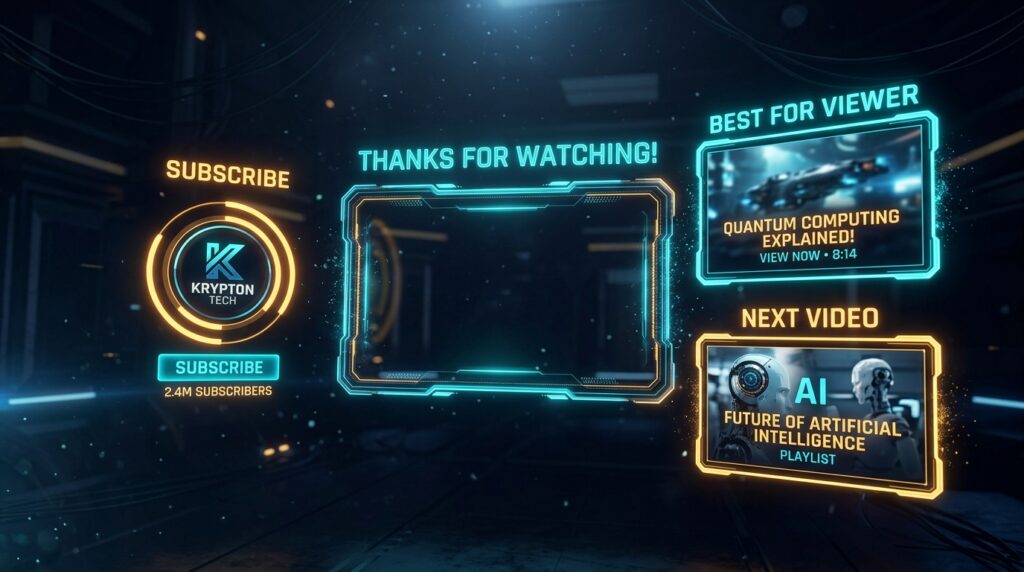
YouTube’s end screen interactive overlay engine does not allow elements to be scattered haphazardly across the entire video player. The platform enforces an interior bounding box known as the Active Element Area. Any graphic designed in your editing software must respect this functional grid so that video cards snap cleanly into their intended design slots without clipping or overlap errors inside YouTube Studio.
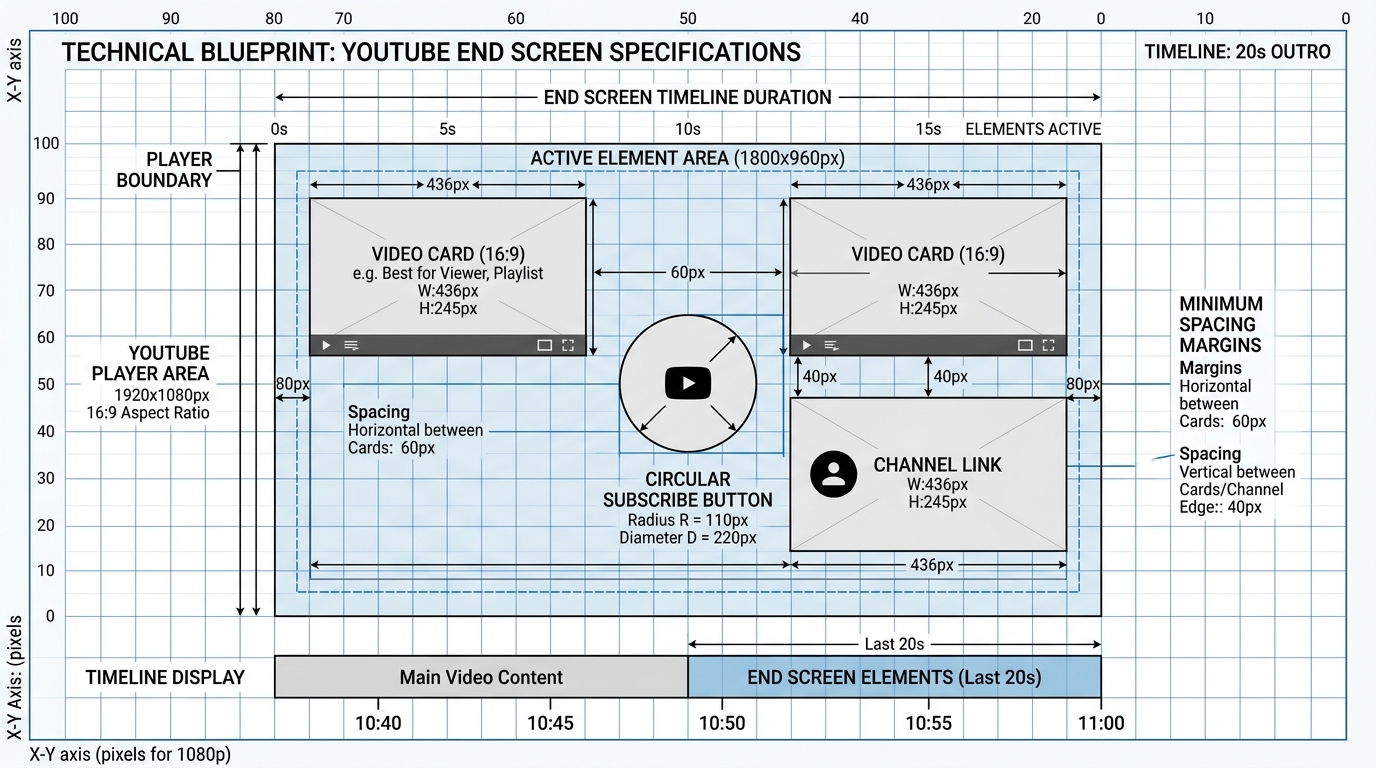
Here are the exact dimensional constraints on standard video production resolutions:
- Standard 1080p Full HD (1920 × 1080): The active working envelope spans 1800×960 pixels, centered on the screen. Standard video cards render at 436×245 pixels. The circular subscribe icon renders with a diameter of 220 pixels. The minimum spacing between adjacent video cards is 60 pixels horizontally and 40 pixels vertically.
- 4K Ultra HD (3840 × 2160): All coordinate measurements scale by a factor of 2.0. The active working envelope expands to 3600×1920 pixels. Video cards render at 872×490 pixels, and the circular subscribe avatar expands to a diameter of 440 pixels. Designing your master template in 4K ensures razor-sharp vectors when rendered on modern high-resolution displays.
- Minimum Element Spacing Constraints: YouTube’s interface engine forbids overlapping elements. If any bounding box breaches the minimum margin of an adjacent element, YouTube Studio flags the layout with a red error border and blocks publication until spacing is corrected.
2. Outro Duration & Pacing: Why 8 to 12 Seconds is Optimal
YouTube permits end screens to appear during the final 5 to 20 seconds of any video that is at least 25 seconds long. However, choosing the maximum duration of twenty seconds is often a catastrophic retention mistake for modern audiences.
When viewers observe your spoken narrative winding down, cognitive fatigue sets in. If your outro sequence lingers for twenty seconds with generic synth background music while cards sit idle on screen, audience drop-off accelerates dramatically. This sharp downward plunge in your retention curve depresses your overall Average Percentage Viewed (APV), which negatively signals YouTube’s recommendation algorithms.
Structure your end screen outro to last between 8 and 12 seconds. This window provides ample time for the viewer’s optic nerve to register the recommended video card and make a conscious click, while moving briskly enough to prevent the viewer from reaching for their browser back button or swiping away.
3. The “Curriculum Chaining” Outro Formula (Bridging Watch Sessions)
The standard YouTube outro—where the creator says, “Thanks for watching! Don’t forget to like, subscribe, and hit the bell!”—is obsolete. Modern viewer psychology is completely desensitized to generic calls-to-action. The moment you utter the phrase “Thanks for watching,” 40% of your remaining audience instantly clicks away.
To capture viewer attention and funnel them directly into another upload, employ the Curriculum Chaining Formula:
- Seamless Continuation Hook: Never announce the video is ending. Transition directly from your final teaching point into the subsequent problem: “Now that you have configured your OBS audio filters, your microphone sounds flawless—but your video bitrate is still choking your frame rate…”
- Physical Pointing Gesture: As you state the next challenge, physically gesture toward the exact quadrant where your video card will appear: “Click right here to see the exact 1080p 60fps recording settings that eliminate lag forever.”
- Zero Verbal Filler: Cut the video file the exact moment you finish speaking the directional prompt. Do not add seven seconds of silent awkward smiling. Ending abruptly while cards are visible creates a psychological impulse to click before the playback halts.
4. Video Element Selection Strategy: Best for Viewer vs. Specific Video
YouTube Studio offers three automated options for video cards: Most Recent Upload, Best for Viewer, and Choose a Specific Video. Deploying these options blindly harms your channel’s session sequencing.
| Recommendation Mode | Algorithmic Mechanism | Optimal Use Case |
|---|---|---|
| Choose a Specific Video | Manually locked by creator | Direct contextual sequels, part 2 tutorials, or complementary workflows |
| Best for Viewer | Personalized machine learning recommendation based on viewer history | Standalone entertainment, broad topic uploads, or back-catalog evergreen videos |
| Most Recent Upload | Dynamically serves newest published video | Time-sensitive news channels, daily vlogging, or weekly market recaps |
For high-converting tutorial and educational channels, the most powerful configuration is a Two-Element Layout: one Specific Video Card pointing to the direct sequel of the current tutorial, positioned alongside a circular Channel Subscribe button. This prevents decision paralysis by presenting the viewer with a single, compelling next step.
5. Mobile Responsive Behavior: How Handheld Devices Adapt Cards
Over 70% of YouTube views originate from mobile smartphones. On mobile devices held in portrait mode, end screen elements behave differently than on desktop monitors:
- Interactive Tap Target Sizing: Mobile YouTube renders video cards as tappable touch targets that consume approximately 35% of the video player height. Cards maintain full interactive fidelity without obscuring core playback controls.
- Subscribe Avatar Modal: When a user taps your circular channel avatar on a smartphone, YouTube opens a native bottom-sheet subscription confirmation dialog without navigating away from the video.
- Landscape vs. Fullscreen Scaling: When a mobile viewer rotates their device into landscape fullscreen mode, end screens render identically to desktop layouts, ensuring that carefully planned margins and framing remain consistent.
6. Step-by-Step Implementation inside YouTube Studio
To apply your end screen template cleanly inside YouTube Studio:
- Log into YouTube Studio and open the Content tab. Click on your target video to open the Video Details editor.
- In the right-hand metadata panel, click the End screen pencil icon.
- Use the playhead scrub bar at the bottom to position your timeline at the exact moment your spoken outro begins (e.g.,
10:48on an 11-minute video). - Click + Element and select Video. Choose “Choose a specific video” and select your designated sequel.
- Drag the element bounding box to align with your background outro graphics. Notice how YouTube Studio provides magnetic snap guidelines when elements approach safe boundaries.
- Click + Element and select Subscribe. Drag the circular avatar into your designated icon slot.
- Click Save in the upper-right corner. Play back the video in an incognito browser tab to verify smooth transitions and flawless alignment.
Frequently Asked Questions
End screens cannot be added to videos marked as “Made for Kids,” videos set to 360-degree VR formatting, or videos shorter than 25 seconds in total duration. In addition, you must have at least 20 seconds of total playback to utilize the maximum end screen duration.
Yes, but only if your channel is an approved member of the YouTube Partner Program (YPP) with advanced features unlocked. External links must point to approved domains, such as your verified merchandise store, crowdfunding campaign, or official website.
YouTube Studio strictly prohibits overlapping end screen elements. If two bounding boxes intersect or violate the minimum margin boundary, the interface displays a red error warning, disabling the Save button until you reposition the elements into separate coordinates.
No, provided your outro is tightly paced (8 to 12 seconds) and continues delivering vocal energy. End screens only harm retention when creators drag out their conclusions with twenty seconds of silent dead air or generic farewell speeches.
YouTube permits a maximum of four interactive elements per end screen. However, testing demonstrates that displaying one or two focused elements generates a higher click-through conversion rate than cluttering the screen with four competing choices.