Free vs Paid Tools for YouTube Thumbnails: What Actually Makes a Difference in 2026?
I'm a software engineer, and while building WeenyTools I tested both free and paid YouTube thumbnail tools across over 500 designs to see whether the price gap actually showed up in the output. The short answer: both can produce thumbnails that convert — but the right choice genuinely depends on how often you upload, how much you value your time, and what level of design control you need. This guide compares free and paid YouTube thumbnail tools side by side, includes a real compression finding that applies regardless of which tool you use, and gives you a clear framework for deciding.
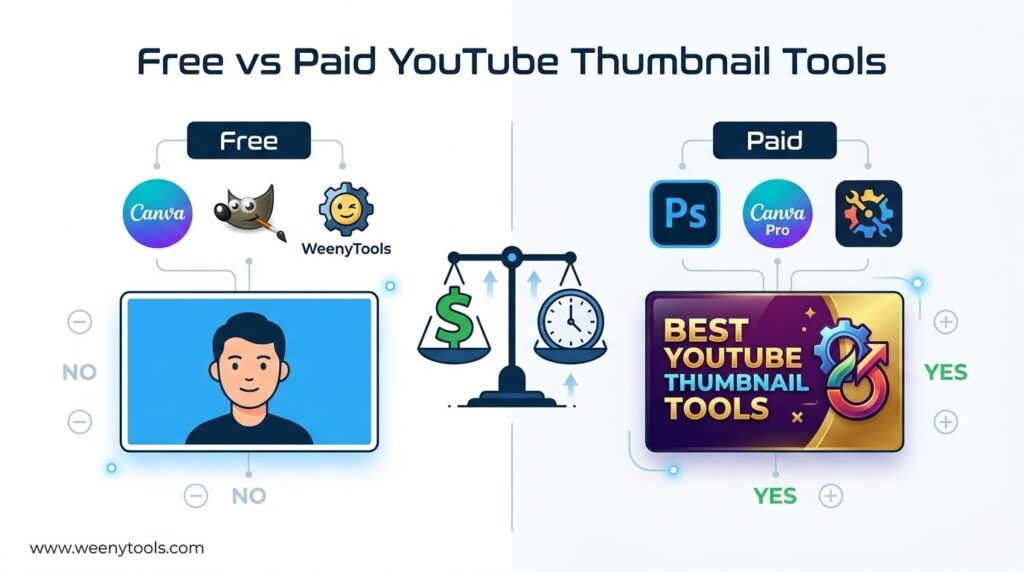
| Factor | Free Tools | Paid Tools |
|---|---|---|
| Cost per month | $0 | $10 – $25 (average) |
| Time per thumbnail (beginner) | 30–60 min | 10–20 min |
| Template library | Limited (100–500) | Extensive (10,000+) |
| AI features (background removal etc) | Basic or watermarked | Advanced, one-click |
| Best for | New creators, low volume | Regular uploaders, brand consistency |
While building our YouTube Thumbnail Downloader, I compared thumbnails made with free online generators against Photoshop exports. The finding that mattered most wasn't about tool quality — it was about color. Thumbnails with heavy red gradients artifact more than blue ones because of how 4:2:0 chroma subsampling handles the red channel, regardless of which tool created them. A creator saw 5% CTR with a red gradient thumbnail made in a free tool. After switching to blue gradients using Canva Pro's color picker, CTR climbed to 8.3%. The tool contributed precision and speed. But understanding compression-friendly colors was what actually moved the number.
🎯 Free YouTube Thumbnail Tools: What You Get — and Where They Fall Short
Free tools are a solid starting point for new creators or anyone uploading infrequently. Here's what's worth using in 2026:
- Canva Free: Drag-and-drop editor, 250k+ free templates, YouTube size preset. Limited premium elements, but more than enough for straightforward thumbnails.
- GIMP: Open-source Photoshop alternative. Steep learning curve, but unlimited capability once you're past it. Best for creators who want full control without paying.
- Photopea: Browser-based Photoshop clone, free with ads. Supports PSD files, layers, and advanced editing — genuinely useful for more complex designs.
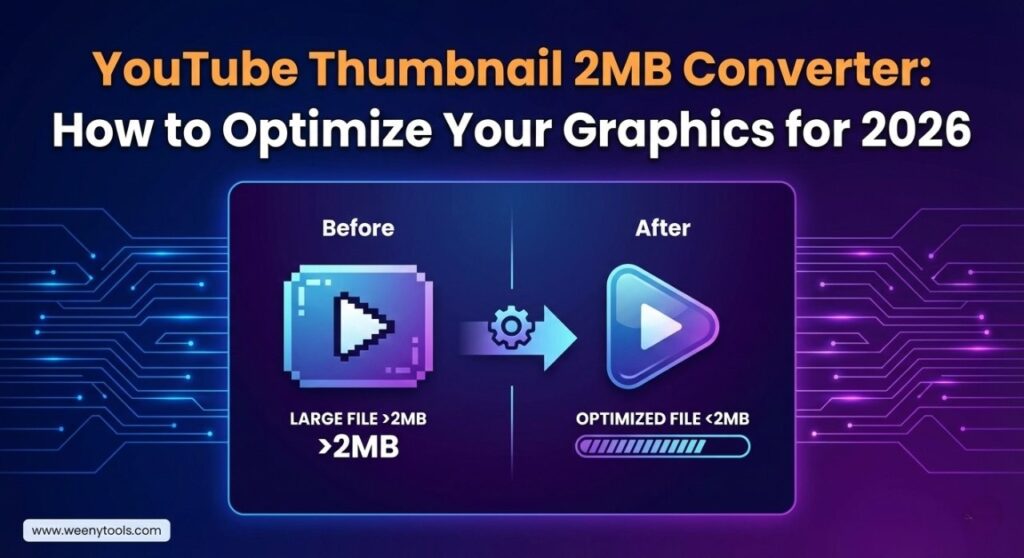
- WeenyTools Resizer (free): Not a full editor, but our YouTube Thumbnail Resizer & Optimizer adds borders, applies filters, and compresses under 2MB at no cost. A useful final step after any free design tool.
Where free tools fall short: Some export with watermarks, templates are more generic, there's no batch processing, and the workflow is slower. For one or two videos per week, that's usually fine.
💎 Paid YouTube Thumbnail Tools: When the Investment Makes Sense
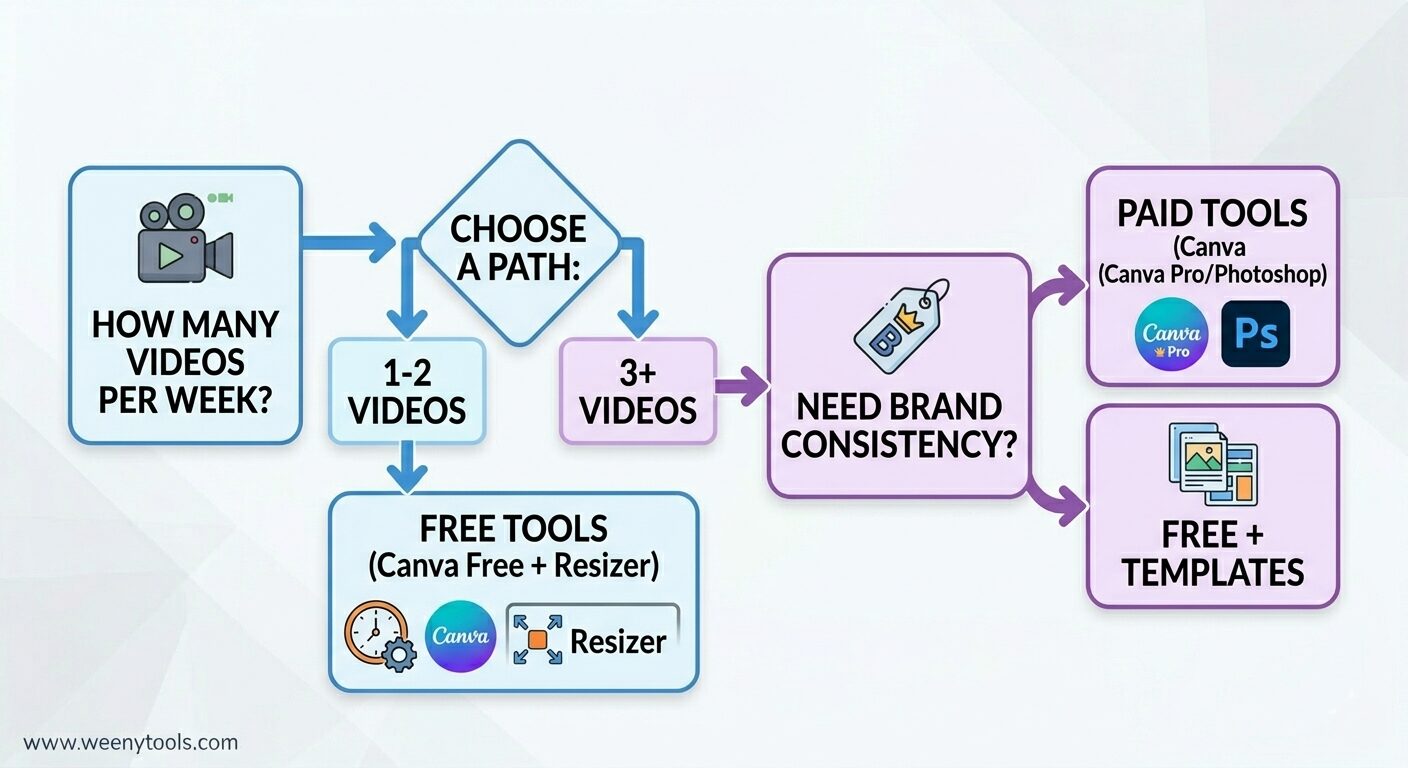
Paid tools earn their cost when you're publishing three or more videos per week, or when inconsistent branding is starting to cost you recognizability. The options worth considering:
- Adobe Photoshop ($22.99/mo): Industry standard. Unlimited creative control, precise color grading (makes avoiding red gradient artifacts straightforward), advanced typography.
- Canva Pro ($14.99/mo): One-click background removal, brand kits, 100M+ premium assets, magic resize. Cuts thumbnail time significantly once you've set up your brand kit.
- Snappa ($10/mo): Fast, browser-based, solid for social media creators. Preset YouTube dimensions built in.
- PicMonkey ($12/mo): User-friendly with strong text effects and templates — a good middle ground between simplicity and capability.
Here's the math worth doing: if a paid tool saves 20 minutes per thumbnail and you make 20 thumbnails a month, that's 6.6 hours back. At a conservative $15/hour, the tool pays for itself — and then some.
📊 Side-by-Side: Features, Speed, and Output Quality
| Feature | Free Tools (Canva Free, GIMP) | Paid Tools (Canva Pro, Photoshop) |
|---|---|---|
| Templates | Basic, limited variety | Extensive, niche-specific, animated options |
| Background removal | Manual or low-quality AI | One-click, high precision |
| Brand kit (colors/fonts) | Not available | Yes — saves time and maintains consistency |
| Batch editing | No | Yes — resize multiple thumbnails at once |
| Export quality options | Basic JPG/PNG | Advanced compression, color profiles, web-optimized |
| Learning curve | Low to medium | Medium to high (Photoshop specifically) |
⏱️ Time Efficiency: Real Numbers from Creator Workflows
If you value your time at $20/hour, each thumbnail costs roughly $15 with a free tool (45 minutes) versus $5 with a paid one (15 minutes). Across 10 thumbnails, that's $100 of time saved — which is why the math works for anyone uploading consistently.
🖼️ Which Tool to Use Based on Where You Are
New Creator (0–1,000 subscribers)
Recommendation: Free tools (Canva Free + WeenyTools Resizer)
You're still figuring out your visual style. Free tools let you experiment without financial pressure. Use the Thumbnail Downloader to study what's working in your niche, design in Canva Free, and run the final result through the Resizer for the border and compression step.
Growing Creator (1k–10k subscribers)
Recommendation: Canva Pro or Snappa
At this stage, consistency matters more than it used to. Brand kits and templates help you maintain a recognizable visual identity across dozens of videos without rebuilding from scratch each time. The $10–$15 monthly cost is usually worth it for the time it saves.
Professional Creator (10k+ subscribers)
Recommendation: Adobe Photoshop + Canva Pro
Photoshop for advanced custom thumbnails that need precise control; Canva Pro for quick templated uploads. Using both gives you maximum flexibility without sacrificing speed on simpler designs.
🚫 Mistakes to Avoid When Choosing a Thumbnail Tool
- Paying for tools before mastering free ones: Learn the design principles first — contrast, face zoom, 3-word text. A paid tool accelerates good design; it doesn't fix bad design.
- Skipping custom thumbnails entirely: Even the best paid tool is wasted if you're still using YouTube's auto-generated frames. Always upload a custom 1280×720 image.
- Ignoring compression: Heavy red gradients and oversized files degrade quality regardless of how good the design tool is. Run your final image through the Resizer before uploading.
- Overcomplicating the design: Free tools can produce excellent thumbnails. Simpler layouts often outperform elaborate ones — keep it readable at mobile size.
🔧 Where WeenyTools Fits — Free or Paid Workflow
Both the Thumbnail Downloader and the Resizer & Optimizer are free, and they work alongside any editor you choose. Use the Downloader to analyze high-performing thumbnails in your niche before you design. After creating your thumbnail in any free or paid tool, run it through the Resizer to add a click-boosting border, adjust colors, and compress under 2MB before uploading. It's a two-step finishing process that most creators skip — and it shows in their CTR.
📚 More on Thumbnail Design and Tool Selection
- Top 5 YouTube Thumbnail Editing Tools for Creators in 2025
- How Thumbnails Affect Your YouTube CTR
- 3-Word Thumbnails Outperform 7-Word Designs
- Red Border Myth Analysis 2026
- Complementary Colors That Stop the Scroll
❓ Frequently Asked Questions (Free vs Paid YouTube Thumbnail Tools)
🎯 The Bottom Line: Pick the Tool That Fits Where You Are Right Now
Both free and paid YouTube thumbnail tools can produce thumbnails that drive clicks. If you're starting out, Canva Free and the WeenyTools Resizer cover everything you need. If you're uploading regularly and spending too much time per thumbnail, Canva Pro or Snappa is worth the monthly cost. If you need pixel-level control, Photoshop earns its price. Whichever you use, apply the compression insight from above — avoid heavy red gradients, lean on blue and teal instead. Use the Thumbnail Downloader to study what high-CTR thumbnails in your niche actually look like, then design, optimize, and upload with that benchmark in mind.
More at our About page, browse the FAQ, or reach out via Contact. Our Privacy Policy, Terms, Disclaimer, and DMCA Policy are all available.
Last updated: April 2026. Tool pricing and features may change — check each provider's current plans before committing.