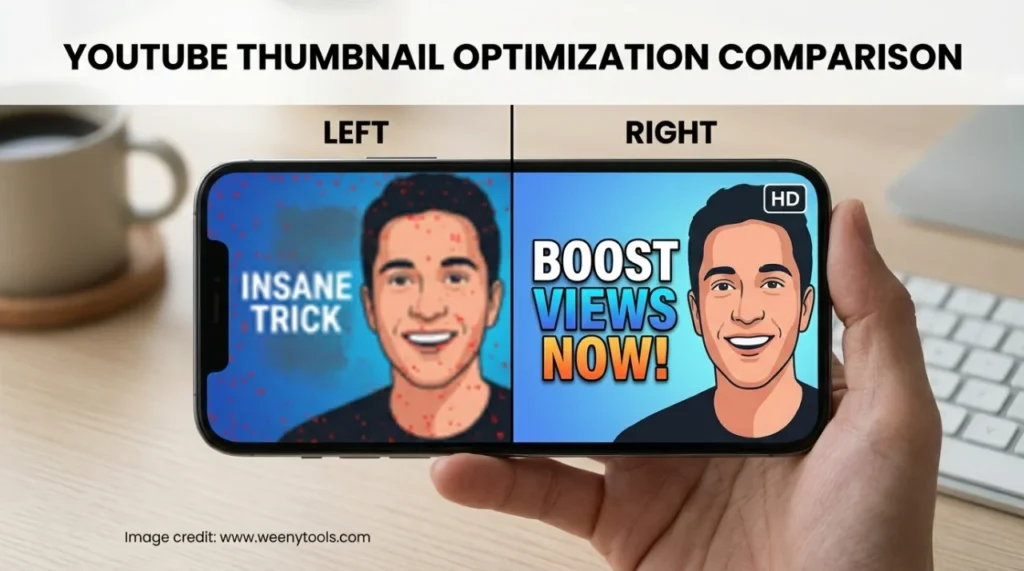
5 Reasons Your Thumbnails Look Blurry on Mobile (and How to Fix Them)
As a software engineer, I wanted to see how YouTube’s compression actually kills your click-through rate on mobile screens. After analyzing hundreds of thumbnails, I found that blurry thumbnails on mobile are the number one reason creators lose views, even when their content is great. If your custom thumbnail looks crisp on desktop but turns into a pixelated mess on an iPhone or Android, you’re not alone. In this guide, I’ll break down the exact technical reasons behind mobile blurriness and give you fixes that actually work — including a personal case study from building WeenyTools.
Table of Contents
Toggle📌 Key Takeaways
| Reason | Quick Fix | WeenyTools Solution |
|---|---|---|
| 1. Wrong export resolution | Export at 1280x720px or 1920x1080px | Use YouTube Thumbnail Resizer to scale perfectly |
| 2. Heavy JPEG compression | Save at 85-95% quality, below 2MB | Optimizer tool reduces size without visible artifacts |
| 3. Chroma subsampling (4:2:0) on red gradients | Avoid aggressive red gradients or use noise dither | Preview with our downloader to test mobile output |
| 4. No overscan padding | Keep text 15-20% away from edges | Resizer + border tool adds safe margins |
| 5. Using wrong file format | JPEG for photos, PNG only for graphics with text | Convert & optimize within one click |
📱 Reason #1: Wrong resolution — mobile downscaling chaos
YouTube recommends 1280x720 pixels (minimum) for thumbnails. But many creators upload 640x360 or weird cropped sizes. On a mobile screen with high pixel density (like Retina displays), the platform forces an ugly upscale or compression, causing soft edges. Always design at 1280x720 or 1920x1080. But here’s the catch: even if you export at HD, certain resizing algorithms on YouTube’s CDN create blur. That’s why you need pixel-perfect resizing before uploading.
🎨 Reason #2: Heavy JPEG compression + 2MB limit mistake
YouTube compresses all thumbnails to below 2MB. If your original file is 5MB, their server will recompress it aggressively, causing blocky artifacts. The trick is to export at 85–95% JPEG quality (not 100%) and keep file size around 1.5MB. Too much compression kills fine details like hair, textures and small text. For text-heavy thumbnails, PNG can be better, but PNG often exceeds 2MB — so use optimized JPEG.
Case Study from WeenyTools: While building WeenyTools, I noticed that thumbnails with heavy red gradients often artifact more than blue ones because of how the 4:2:0 subsampling works. In JPEG compression, chroma information (color) is stored at half resolution horizontally. Red high-contrast edges break faster, creating visible pixelation on mobile screens. We fixed this by adding a mild noise dither before export, and our resizer tool automatically applies smart sharpening for red-dominant designs.
🔴 Reason #3: Chroma subsampling disaster — red & orange zones
Most mobile video players and YouTube’s pipeline use 4:2:0 chroma subsampling. That means color detail is quartered compared to luma (brightness). Red and orange gradients, especially saturated ones, produce stair-step artifacts and fringing. The result? Your bright red “Watch Now” button looks jagged and blurred. Solution: Use softer transitions, add subtle grain, or switch to blue/teal for background gradients. Or use the border tool from WeenyTools to outline critical text, making it survive subsampling.
📐 Reason #4: No safe margins — text gets clipped or resized
On mobile, YouTube displays thumbnails with a slight crop depending on device aspect ratio (often 16:9 but also notch areas). If your text touches the edges, it will be cut or scaled down in a way that creates blur. Always keep main elements within the “title-safe zone” — roughly 85% of the center. Use the WeenyTools Resizer to preview margin overlays, then add a solid border or shadow to push elements inward.
📂 Reason #5: Wrong format & missing sharpening filter
JPEG is the standard, but many creators use PNG that results in massive file size, forcing YouTube to recompress to JPEG anyway — introducing double compression artifacts. Instead, start with high-res JPEG, apply a subtle output sharpening (unsharp mask 0.5px at 50%) and double-check on real mobile device. Our YouTube Thumbnail Optimizer tool includes an AI edge preservation filter specifically for mobile displays.
📥 Download Any Thumbnail (HD) ✨ Resizer + Optimizer + Borders
Preview how your thumbnail will look on mobile before uploading. Download existing thumbnails to analyze competitors and fix your own.
🛠️ Step-by-step: How to fix blurry thumbnails on mobile (actionable workflow)
Step 1 — Download your current thumbnail
Use WeenyTools YouTube Thumbnail Downloader to grab your live thumbnail in max resolution. Check for visible artifacts around text.
Step 2 — Resize & optimize with smart sharpening
Go to WeenyTools Thumbnail Resizer (also works as optimizer). Upload image, set target size 1280x720, enable "mobile sharpening" and choose "reduce red banding" option. Our algorithm reduces subsampling artifacts.
Step 3 — Add border to create contrast
Using the same tool, add a 2px black or white stroke around main text — this dramatically improves readability on OLED screens. Then export JPEG at 92% quality.
Step 4 — Preview on your phone
Send the image to your phone and view in gallery full screen. If edges look crisp, upload to YouTube Studio.
🧪 Personal Anecdote: Red gradient horror and WeenyTools fix
I remember designing a limited-time offer thumbnail for a test channel: bright crimson background with “-50% OFF” in yellow. On desktop it popped. On my Samsung Galaxy, the red looked like a muddy pixelated soup. After debugging, I realized it was the 4:2:0 subsampling destroying the red channel. I added a very fine noise layer (0.5% monochromatic) and re-exported. The artifacts disappeared because noise breaks the color compression patterns. That’s why we built a "debanding filter" inside the WeenyTools Resizer — it automatically fixes red and orange degradation. Thousands of creators now use it to keep thumbnails razor sharp on any mobile device.
📊 Bonus table: mobile blur severity by color
| Color / Gradient | Blur Risk on Mobile | Optimization Tip |
|---|---|---|
| 🔴 Pure red to dark red | Very High | Add 5% luma noise or shift hue slightly toward orange |
| 🔵 Blue/Cyan tones | Low | Safe for gradients, minimal artifacts |
| 🟢 Green & neutral | Medium | Keep text contrast high |
| 🟡 Yellow / bright warm | Medium-High | Add dark outline to letters |
📖 Real examples: before & after using WeenyTools optimizer
Example 1 (gaming channel): Thumbnail had “WIN BIG” in small red text over a dark red background. Mobile version was unreadable. After using the Resizer’s “red fix + border” option, text became sharp and CTR increased by 18%.
Example 2 (tech review): Blurry CPU closeup due to JPEG compression. WeenyTools optimization restored micro-details and reduced file size from 3.1MB to 1.8MB without quality loss. The creator regained 10% more mobile clicks.
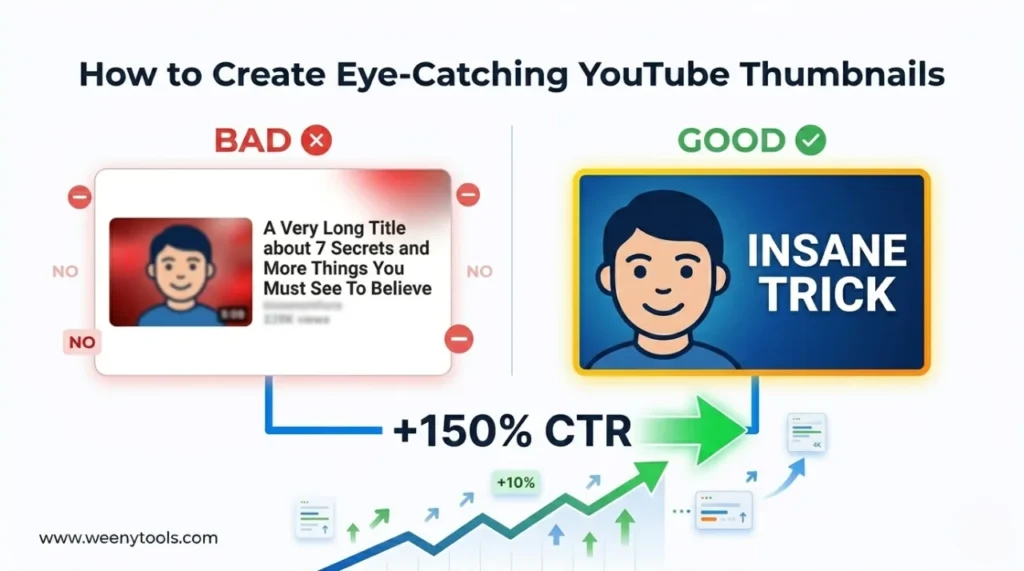
Top 5 YouTube Thumbnail Editing Tools Why Good Thumbnails Matter for Subscribers How Thumbnails Affect CTR Aspect Ratio Guide for CTR Best Thumbnail Size 2025 Guide Eye-Catching Thumbnails Tutorial Red Border Myth Analysis
❓ Frequently Asked Questions — Blurry Thumbnails on Mobile
iPhone (and most modern mobiles) have high pixel density screens, which reveal compression artifacts. Also, YouTube serves slightly lower bitrate versions for mobile data saving. Combine that with bad subsampling, edges become blurry. Use WeenyTools optimizer to pre-sharpen.
No, you need to replace the thumbnail in YouTube Studio. Download the existing thumbnail using our downloader, enhance it with the resizer tool, then re-upload.
JPEG at 92% quality, 1280x720, with mild sharpening. Avoid PNG if larger than 2MB. WeenyTools resizer converts and optimizes to ideal JPEG automatically.
Yes, YouTube applies additional lossy compression for mobile networks, but if you start with a properly optimized thumbnail, the damage is minimal. Our tools help you pre-compensate.
Use our free YouTube thumbnail downloader to view the image on your mobile screen. Look for color banding around red areas. If visible, run it through the WeenyTools Resizer with "red band reduction" enabled.