How to Submit a YouTube Demonetization Video Appeal (Winning Script & Checklist 2026)
If your YouTube channel has been unexpectedly demonetized or rejected from the YouTube Partner Program (YPP) for “Reused Content” or “Repetitive Content,” the single most powerful recovery weapon at your disposal is the Video Appeal. When automated algorithmic scans misclassify original commentary, human review teams are deployed to inspect your workflow. However, you only have one opportunity: you must record and submit an unlisted 5-minute video demonstrating how you personally create, research, edit, and produce your videos from scratch.
Submitting an appeal video that rambles, complains about YouTube’s unfairness, or fails to show your actual editing timeline will result in an immediate rejection within 48 hours, locking your channel out of monetization for months. To win your appeal in 2026, you must treat your submission like an airtight technical audit. In this comprehensive guide, we provide the exact 5-minute structural breakdown, technical video requirements, human reviewer psychology, and a proven word-for-word spoken script that has successfully reinstated hundreds of demonetized channels.
Key Takeaways: The Video Appeal Blueprint
- Strict 5-Minute Time Limit: Your appeal video must be under 5 minutes in length. If your video is 5 minutes and 1 second, reviewers are instructed to reject it immediately without watching.
- Do NOT Delete Any Videos: The number one mistake creators make is deleting flagged videos before appealing. If you delete even one video after receiving the demonetization notice, your appeal will be automatically disqualified.
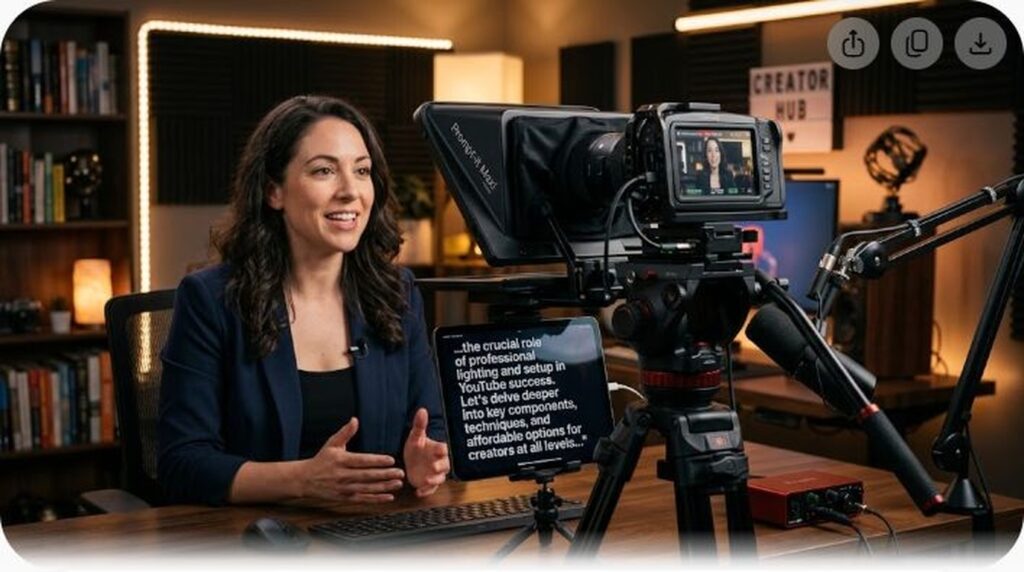
- Show Your Face and Voice: An on-camera intro (even 30 seconds) establishing your identity paired with the exact microphone and voice used in your channel’s videos builds immediate authenticity with human evaluators.
- Capture Live Project Files: Reviewers do not want a PowerPoint presentation. You must record your screen showing Premiere Pro, DaVinci Resolve, or Final Cut timelines, audio waveforms, original voice recording sessions, and raw B-roll folders.
- Include Channel URL in the First 30 Seconds: Display your full channel URL (
youtube.com/@YourHandle) on screen or speak it aloud in the opening 30 seconds of the video as mandated by YouTube appeal policy.
Technical Requirements for an Eligible Appeal Video
Before scripting your video, you must ensure your file meets YouTube’s strict compliance criteria. If any of these technical parameters are violated, your appeal will be rejected on procedural grounds before a reviewer even evaluates your content:
| Requirement Dimension | Mandatory YouTube Standard | Critical Creator Warning |
|---|---|---|
| Video Visibility | Must be set to Unlisted | Never set to Public or Private. Private links cannot be viewed by reviewers. |
| Maximum Duration | Strictly under 5:00 minutes | Aim for 4:30 to 4:45. Never exceed 5:00.00. |
| Language & Subtitles | Spoken English OR English Subtitles | If speaking any language other than English, hardcode English subtitles on screen. |
| Channel Identification | Channel URL in first 30 seconds | Must display your channel link or @handle on screen immediately. |
| Hosting Location | Uploaded to the affected channel | Do not upload to a secondary channel. It must be uploaded directly to the demonetized account. |
The 5-Minute Appeal Structural Breakdown
Human reviewers at YouTube evaluate dozens of appeal videos every shift. They do not have time for theatrical storytelling or emotional venting. Structure your 5 minutes with mathematical precision:
Minute 0:00 – 0:30: Identity Verification & Channel Link
Appear on camera if possible, or show your physical workspace. Clearly state your full legal name, your channel name, and display your channel URL across the center of the screen. State clearly: “This video appeal is submitted to dispute the Reused Content decision for channel [Your Handle].”
Minute 0:30 – 1:30: Editorial Concept & Research Process
Show your research methodology. Switch your screen capture to your desktop. Show your Notion documents, research notes, script drafts, and reference source material. Explain how you formulate unique editorial angles rather than copying existing content.
Minute 1:30 – 2:30: Voiceover & Audio Production Proof
Demonstrate how you record your audio. Show your recording software (Audacity, Adobe Audition, OBS, or DAW) with raw unedited audio tracks. Speak into your microphone live so the reviewer can hear that the voiceover on the channel belongs to you.
Minute 2:30 – 4:00: Deep-Dive Timeline Breakdown (Premiere / DaVinci)
This is the most critical segment of the entire video. Open your video editing software showing the complex project file of one of your most popular or recent uploads:
- Mute and unmute individual audio and video tracks to demonstrate multi-layer editing.
- Show your cut points, color grading nodes, custom motion graphics, keyframes, and sound effect layers.
- Explain how each third-party clip or stock footage element is heavily transformed with commentary and graphics.
Minute 4:00 – 4:45: Channel-Wide Consistency & Value Proposition
Open YouTube Studio. Scroll through your content catalog to demonstrate that the production methodology you just showcased is consistently applied across all uploads. Summarize your commitment to the YouTube Partner Program guidelines.
Word-for-Word Spoken Appeal Script (Tested & Proven)
Use this script as your speaking guide while recording your screen. Keep your tone professional, objective, and respectful:
“Hello YouTube Review Team. My name is [Your Name], and I am the sole creator, writer, and editor of the YouTube channel [Channel Name], located at [youtube.com/@YourHandle], as displayed on screen. I am submitting this video appeal to address the recent Reused Content demonetization notice.
[0:30 – Screen Capture: Scriptwriting & Research]
“Here on my screen is my research and writing workflow. Every video begins with original research. As you can see in my Google Docs and research folders, I spend between 15 to 20 hours reading source documentation, cross-referencing industry data, and drafting comprehensive scripts from scratch. None of my text is scraped, automated, or copied from third parties.
[1:30 – Screen Capture: Audio Recording]
“Next, I record all voiceovers personally in my home studio using my [Mic Model]. Here is my raw Audacity project for my latest video. As you can hear right now, my live voice matches the exact timbre, cadence, and tone of every voiceover across my channel.
[2:30 – Screen Capture: Video Editing Timeline]
“Now, let us examine my editing project file in DaVinci Resolve [or Premiere Pro]. This is the master project for video [Video Title]. As you can see, this timeline contains over 250 individual cuts, 6 audio layers, and custom motion graphics. Notice how third-party visual elements are never played uninterrupted; they are heavily transformed with zoom cuts, analytical text callouts, color grading, and continuous original commentary.
[4:00 – Screen Capture: Channel Catalog]
“This rigorous, human-driven production process is applied to 100% of the videos across my channel. My content provides substantial educational and critical value to my community. I kindly request that you review this evidence and reinstate monetization for my channel. Thank you for your time and dedication.”
Common Mistakes That Guarantee Appeal Rejection
Avoid these fatal errors when recording your appeal video:
- Deleting Flagged Videos: If you delete videos before or during the appeal, YouTube’s automated system cancels the appeal instantly because the catalog state has changed.
- Complaining or Making Excuses: Spending your 5 minutes arguing about YouTube’s unfairness, ad revenue loss, or personal financial hardship will result in an immediate rejection. Reviewers only care about procedural evidence.
- Showing a Completed Video Playing: Simply playing your finished YouTube video on your monitor proves nothing. You must show the editable source project file inside your video editor.
- Exceeding 5:00.00: Keep your video between 4:30 and 4:50. Reviewers are strictly mandated to disqualify any appeal video that clocks in at 5:01 or higher.
Frequently Asked Questions (FAQ)
How long does YouTube take to review a video appeal?
YouTube typically reviews video appeals within 2 to 7 business days. You will receive an email notification and an update inside YouTube Studio under the Earn tab once the review is completed.
What happens if my video appeal is approved?
If approved, your channel’s monetization is reinstated immediately. You will be able to turn on ads across all eligible videos, and your revenue share will resume without needing to wait for a 30-day reapplication period.
Can I submit an appeal if I already deleted some videos?
No. If you deleted any videos after receiving the demonetization notice, the “Start Appeal” button in YouTube Studio will be disabled. In that scenario, your only option is to wait 30 or 90 days, upload fresh original content, and reapply normally.
Do I need to appear on camera during the appeal video?
While not strictly mandatory, appearing on camera for the first 30 seconds significantly increases your approval probability because it conclusively proves to the human reviewer that a real human creator owns and operates the channel.
What should I do if my video appeal is rejected?
If your appeal is rejected, the decision is final for that review cycle. You must review YouTube’s feedback, remove or re-edit any borderline content, upload new original videos over the next 30 to 90 days, and reapply for the YouTube Partner Program once your waiting period expires.