Best OBS Audio Filters for Speaking Voice (Pro Mic Chain Setup 2026)
In modern digital broadcasting, viewer retention is dictated more by audio fidelity than visual resolution. Countless creator analytics audits confirm that audiences will comfortably tolerate a 1080p webcam feed or occasional frame drops, but will instantly click away from a video plagued by muffled speech, keyboard clatter, air conditioner hum, or harsh digital clipping. While many creators assume pristine audio requires a $1,000 studio setup, the reality is that software digital signal processing (DSP) inside OBS Studio can elevate even a budget USB microphone to broadcast-quality standards.
However, simply slapping random filters onto your microphone in OBS Studio often does more harm than good. Putting a compressor before noise suppression will amplify room noise, while an improperly configured noise gate will chop off the beginnings and ends of your sentences, making your voice sound robotic and unnatural. In this definitive 2026 audio engineering guide, we dissect the exact mathematical order of the 5-stage OBS vocal filter chain, provide tested parameter presets for both dynamic and condenser microphones, and explain how to achieve a deep, radio-ready broadcast tone with zero audible latency.
Key Takeaways: The OBS Voice Filter Blueprint
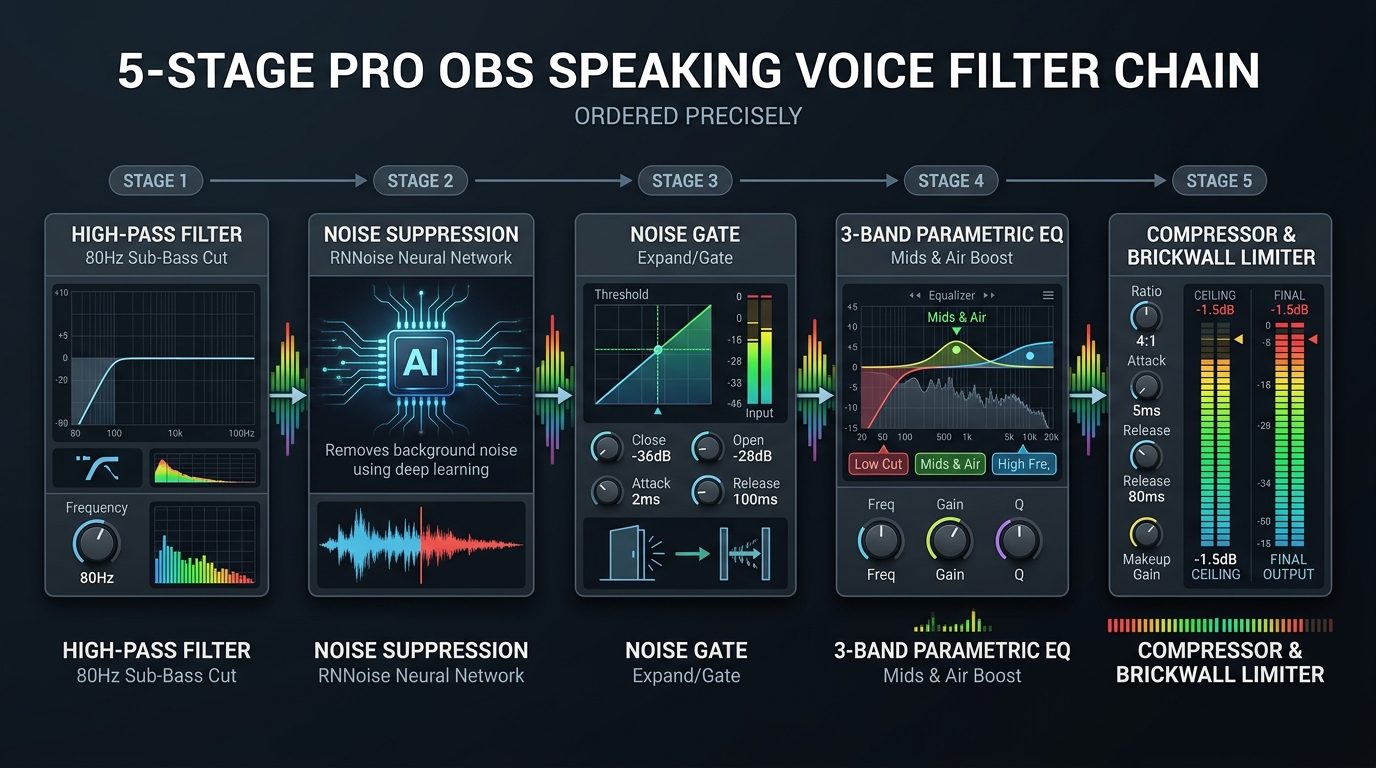
- Processing Order is Everything: Digital audio filters must follow a strict causal hierarchy: High-Pass Filter → Noise Suppression → Noise Gate → Parametric EQ → Compressor → Limiter. Inverting this chain ruins vocal clarity.
- RNNoise (AI Model) Over Speex: Always select RNNoise (Good Quality) over Speex. RNNoise uses a trained recurrent neural network that isolates vocal harmonics from non-stationary background noise (fans, traffic, mouse clicks) with zero configuration.
- The 80 Hz Low-Cut Rule: Human conversational speech contains no meaningful vocal fundamentals below 80 Hz. Cutting everything below 80 Hz clears sub-audible HVAC rumble and desk thumps, giving your compressor 3 dB to 4 dB more clean headroom.
- Compress for Consistency, Not Volume: Set your compressor to a gentle 3:1 to 4:1 ratio with a fast attack (2 ms to 5 ms) and a smooth release (60 ms to 80 ms). This evens out the difference between quiet whispering and enthusiastic speaking.
- The -1.5 dBFS Brickwall Limiter: Always place a Limiter at the absolute end of your filter chain set to -1.5 dB. This guarantees your voice never touches 0 dBFS, preventing harsh digital clipping when laughing, shouting, or reacting.
Why Audio Filter Order in OBS Studio Dictates Vocal Quality
The single most catastrophic mistake creators make when configuring OBS Studio is treating filters as an unranked bucket of effects. OBS processes audio filters sequentially from top to bottom. The output of Filter 1 becomes the direct input of Filter 2, and so forth.
Consider what happens if you place a Compressor before Noise Suppression. A compressor’s job is to reduce the dynamic range by pulling down loud peaks and boosting quiet sounds (via makeup gain). If room noise (such as a whining computer fan) enters the compressor, the compressor boosts that background hiss during pauses in speech. When that boosted noise reaches your noise suppression filter, the algorithm struggles to differentiate between your voice and the amplified static, resulting in watery, underwater-sounding vocal artifacts.
By contrast, when you clean the signal first (filtering out sub-bass rumble and suppressing stationary background noise), the downstream compressor and equalizer receive pristine, isolated vocal frequencies, allowing them to sculpt warmth, presence, and dynamic control with surgical transparency.
Stage 1: High-Pass Filter (Low-Cut at 80 Hz)
Every recording environment is contaminated by sub-audible, low-frequency acoustic vibrations. Large truck traffic outside your window, the motor inside your refrigerator, central air conditioning ducts, and mechanical keyboard vibrations traveling through your desk legs generate massive energy waves between 10 Hz and 70 Hz.
While human ears cannot clearly perceive pitch at 35 Hz, microphone diaphragms readily capture it. This invisible low-frequency energy consumes valuable dynamic headroom in your audio interface and tricks compressors into triggering when you haven’t even spoken.
How to Apply in OBS:
- Right-click your Microphone source in the Audio Mixer > select Filters.
- Click the
+icon and add an Equalizer (or use a dedicated VST3 high-pass filter like ReaEQ). - If using a parametric EQ, set Band 1 to a High-Pass (Low-Cut) curve with a cutoff frequency of 80 Hz (for deep male voices) or 100 Hz (for higher-pitched voices).
- Set the slope to 12 dB/octave (or 18 dB/octave).
Immediately, table bumps and HVAC low-end hum vanish without altering the natural richness or baritone chest resonance of your speaking voice.
Stage 2: Noise Suppression (RNNoise Neural Network)
OBS Studio provides two native noise suppression algorithms: Speex (low CPU usage) and RNNoise (good quality, more CPU usage). In 2026, modern multi-core processors render Speex completely obsolete.
Why RNNoise Wins:
Speex relies on traditional spectral subtraction: it analyzes continuous background frequencies and subtracts them. However, it requires manual decibel threshold tuning, creates harsh phase cancellation, and fails completely against non-linear sounds. RNNoise, by contrast, uses a sophisticated deep-learning neural network trained on thousands of hours of clean speech and noise profiles. It dynamically separates human vocal formants from environmental noises in real time.
- Click
+> select Noise Suppression. - Select RNNoise (good quality, more CPU usage).
- Leave the setting as default. RNNoise automatically adapts to your room’s acoustic baseline.
Stage 3: Noise Gate (Eliminating Room Tone in Pauses)
While Noise Suppression cleans background hum while you are speaking, a Noise Gate acts as an automated digital mute switch. When you stop speaking, the gate shuts, completely silencing the microphone so that keyboard clatter, breathing, chair squeaks, and room reverberation do not bleed into your stream.
The Critical Parameters:
| Control Parameter | Recommended Value | Engineering Function |
|---|---|---|
| Close Threshold | -38 dB to -34 dB | The volume at which the gate snaps shut. Must be set 3 dB to 5 dB above your room’s resting noise floor. |
| Open Threshold | -30 dB to -26 dB | The volume your voice must reach to trigger the gate open. Must be set roughly 5 dB below your quietest whisper. |
| Attack Time | 2 ms (Ultra-Fast) | How fast the gate opens. A fast attack ensures initial consonants (“T”, “P”, “K”) are never cut off. |
| Hold Time | 100 ms to 150 ms | Keeps the gate open momentarily between syllables so word endings don’t stutter or flutter. |
| Release Time | 100 ms to 150 ms | Smoothly fades the volume down to zero rather than abruptly cutting it like a light switch. |
Stage 4: 3-Band Parametric Equalizer (Vocal Sculpting)
Equalization (EQ) tailors the tonal balance of your voice to cut through background game audio, music, and sound effects. While graphic EQs offer rigid sliders, a Parametric EQ allows you to target specific problem frequencies with precision bandwidth control (Q factor).
To use a parametric EQ in OBS, install the free ReaPlugs VST suite (ReaEQ) or use the native 3-Band EQ filter. Focus on three strategic zones:
1. Clear Boxy Mud (300 Hz to 500 Hz Dip)
Untreated rooms and inexpensive desktop microphone enclosures resonate heavily in the lower-midrange between 300 Hz and 500 Hz. This creates a “talking inside a cardboard box” sound. Apply a narrow bell cut of -2.5 dB at 350 Hz to 450 Hz with a Q of 1.5. This instantly clears muddiness and enhances clarity.
2. Speech Intelligibility & Presence (2.5 kHz to 4.5 kHz Boost)
The human ear is biologically tuned to detect speech consonants and linguistic articulation in the 3 kHz region. Apply a gentle wide boost of +2.0 dB at 3.5 kHz. This brings your voice to the front of the audio mix without increasing overall volume.
3. Air & High-End Sheen (10 kHz to 12 kHz High Shelf)
Dynamic broadcast microphones like the Shure SM7B or Rode PodMic naturally roll off high frequencies above 10 kHz. Apply a subtle high-shelf boost of +1.5 dB at 10 kHz to inject modern broadcast “air” and sparkle.
Stage 5: Dynamic Compressor & Peak Limiter
The final stage in your vocal processing chain manages dynamic range. In streaming and video creation, creators naturally fluctuate between quiet, thoughtful whispering and explosive laughter or screaming during clutch moments. A compressor acts like an automated sound engineer with their hand on the volume fader, smoothly taming loud spikes and lifting soft words.
Master Compressor Settings for OBS:
- Ratio (3:1 to 4:1): For every 4 decibels of sound that exceeds your threshold, the compressor only allows 1 decibel to pass through. A 3.5:1 ratio provides transparent, natural leveling without audible “pumping”.
- Threshold (-18 dB to -15 dB): Set the threshold so the compressor only engages when you speak with normal enthusiasm. You should see 3 dB to 6 dB of gain reduction on your loudest words.
- Attack (3 ms to 5 ms): Fast enough to catch sudden volume surges, but slow enough to let initial consonant transients punch through for clarity.
- Release (60 ms to 80 ms): Returns the volume to normal quickly without creating breathing artifacts.
- Output (Makeup) Gain (+2 dB to +4 dB): Restores the volume lost during peak compression, bringing your overall speech level up to standard streaming broadcast loudness.
The Essential Brickwall Limiter (-1.5 dBFS):
Directly beneath the Compressor, add the final filter: Limiter. Set the Threshold to -1.5 dB and Release to 60 ms. The Limiter acts as an impenetrable glass ceiling. Even if you drop your microphone or scream at the top of your lungs, the audio will never cross -1.5 dBFS, guaranteeing zero digital distortion or blown speaker cones for your viewers.
Hardware Presets: Dynamic Mics vs. USB Condenser Mics
| Filter Setting | Dynamic XLR (SM7B, PodMic, Q2U) | USB Condenser (Blue Yeti, Wave 3, NT-USB) |
|---|---|---|
| Noise Suppression | RNNoise (Default) | RNNoise (Essential due to high sensitivity) |
| Noise Gate (Open / Close) | Open: -32 dB | Close: -38 dB | Open: -28 dB | Close: -34 dB (More aggressive) |
| High-Pass Filter | 80 Hz (Preserves low-end body) | 100 Hz (Eliminates desk rumble) |
| EQ High Shelf (10 kHz) | +2.5 dB (Adds needed high-end air) | 0.0 dB (Condensers already have hyped highs) |
| Compressor Ratio | 3.5:1 | Threshold: -16 dB | 4:1 | Threshold: -18 dB |
Frequently Asked Questions (FAQ)
Do audio filters in OBS add noticeable delay or desync to my microphone?
Standard native OBS filters (High-Pass, Noise Gate, Compressor, Limiter) introduce negligible latency (under 1 millisecond), which is imperceptible to viewers. However, third-party VST3 plugins with heavy lookahead buffers or linear-phase oversampling can introduce between 20ms and 80ms of latency. If you use VST3 plugins, always check their processing delay and apply an equivalent Sync Offset (ms) in OBS Advanced Audio Properties to keep your lips aligned with video.
Why does my voice sound robotic or “underwater” with Noise Suppression?
Robotic vocal artifacts occur when Noise Suppression is struggling against an overwhelming background noise floor or when multiple noise suppression algorithms are stacked simultaneously (e.g., using Discord Krisp, Elgato Wavelink noise removal, and OBS RNNoise all at once). Never run dual noise suppression. Disable all other noise cleaners, move closer to your microphone, lower your hardware preamp gain, and let OBS RNNoise handle suppression alone.
How do I test my OBS audio without going live or recording sample videos?
In OBS Studio’s Audio Mixer, click the three dots next to your microphone > select Advanced Audio Properties. Find your mic channel and change Audio Monitoring from “Monitor Off” to “Monitor and Output”. Plug wired studio headphones into your audio interface or PC (do not use wireless Bluetooth headphones due to latency). You will hear your voice processed in real time through your active filter chain.
Should I use an Expander instead of a Noise Gate in OBS?
Yes, for podcasts and narrative video essays, an Expander is often superior to a strict Noise Gate. A noise gate acts as a binary mute switch, creating total silence that can feel jarring if your room has subtle natural air. An Expander gently attenuates quiet audio below the threshold by a chosen ratio (e.g., 2:1 or 3:1), lowering background noise by 10 dB to 15 dB rather than cutting it completely, yielding a smoother, more transparent transition.
What color zone should my voice reach on the OBS Audio Mixer meter?
Your conversational speaking voice should consistently bounce in the upper green to mid-yellow zone (between -20 dBFS and -10 dBFS). When you speak loudly or excitedly, the meter should peak firmly in the yellow zone around -6 dBFS to -4 dBFS. You should never see the meter enter the red zone above -2 dBFS.