Best Free Video Editing Software for YouTube Beginners (No Watermark 2026)
Launching a competitive YouTube channel in 2026 does not require committing to expensive monthly software subscriptions. While legacy commercial suites demand hundreds of dollars annually, modern open-source and freemium non-linear editors (NLEs) provide professional multi-track timelines, GPU-accelerated rendering, advanced audio scrubbing, and pristine 4K exports without slapping hideous trial watermarks across your creative footage. However, navigating the crowded landscape of free creative tools is fraught with hidden traps, including artificial resolution ceilings, restricted export bitrates, and invasive bloatware. In this comprehensive technical review, we evaluate the best free video editing software for youtube beginners that deliver uncompromised fidelity, zero watermarks, and smooth playback even on modest hardware configurations.
Key Takeaways: Free Editor Specification Matrix
| Software Suite | Primary Strength | Minimum RAM | Max Free Export | Learning Curve |
|---|---|---|---|---|
| DaVinci Resolve 19 | Hollywood-Grade Color & Audio | 16 GB (Unified/Dedicated) | 4K UHD @ 60 FPS | Moderate to Steep |
| CapCut Desktop | Automated Captions & Fast Viral Pacing | 8 GB | 4K UHD @ 60 FPS | Very Beginner-Friendly |
| Shotcut | Lightweight Open-Source Timeline | 4 GB – 8 GB | Unlimited (4K/8K) | Low to Moderate |
| Kdenlive | Modular Timeline & Linux/Windows Parity | 4 GB – 8 GB | Unlimited Custom | Moderate |
| OpenShot | Simple Drag-and-Drop Trimming | 4 GB | 1080p / 4K UHD | Extremely Simple |
1. DaVinci Resolve 19 (Free Version): The Undisputed King of Free NLEs
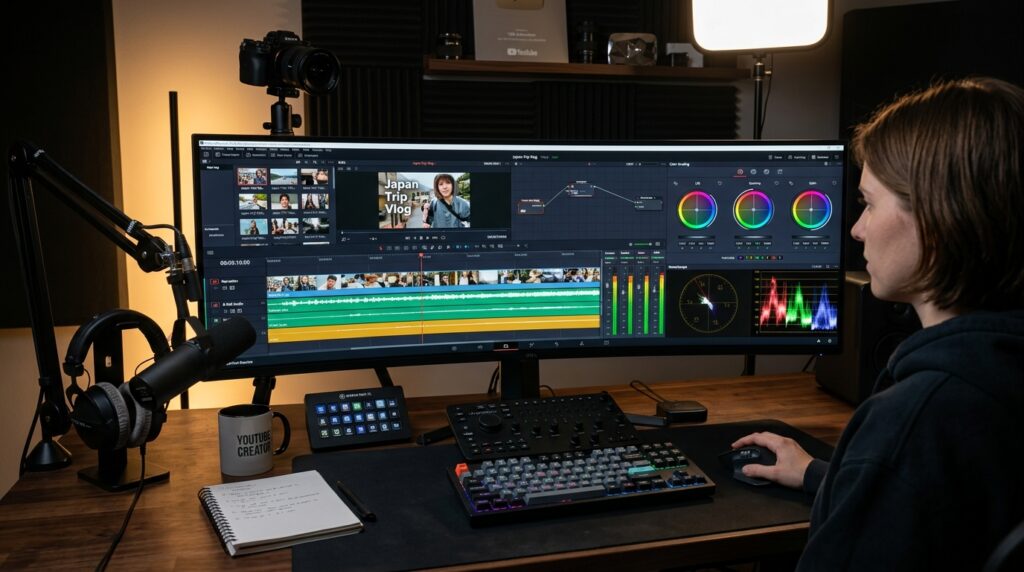
Blackmagic Design’s DaVinci Resolve stands in a category entirely its own. Unlike trial software designed to frustrate users into upgrading, the free version of DaVinci Resolve is an expansive, production-ready non-linear suite utilized by independent filmmakers and premier YouTube creators globally. It delivers a comprehensive post-production ecosystem across dedicated operational pages: Media Management, Fast Cut, Traditional Edit, Fusion Node-Based Compositing, Fairlight Audio Mastering, and Quick Delivery.
For beginner YouTubers, the primary advantage of Resolve lies in its uncompromised color-grading science. The 32-bit floating-point YRGB processing pipeline enables creators shooting flat LOG profiles on consumer mirrorless cameras or smartphones to recover clipped highlights and expand compressed shadows with cinematic nuance. Furthermore, the built-in Fairlight audio suite includes professional parametric equalizers, dynamic compressors, and real-time audio ducking, eliminating the need to bounce audio stems into third-party sound editors.
The free edition exports up to Ultra HD 3840×2160 resolution at up to 60 frames per second without any watermark or subscription expiration. The only primary limitations of the free tier compared to the Studio license are specialized neural AI magic masks, studio noise reduction filters, and hardware encoding for multi-GPU arrays. For 99% of solo creators producing weekly YouTube content, the free tier offers more capability than you will ever outgrow.
2. Hardware Acceleration & System Performance Benchmarks
Selecting the optimal video editing platform requires balancing your creative ambitions against your computer’s actual hardware specifications. Running heavy multi-stream timelines without adequate graphics processing results in stuttering frame drops, timeline latency, and excruciatingly slow export cycles.
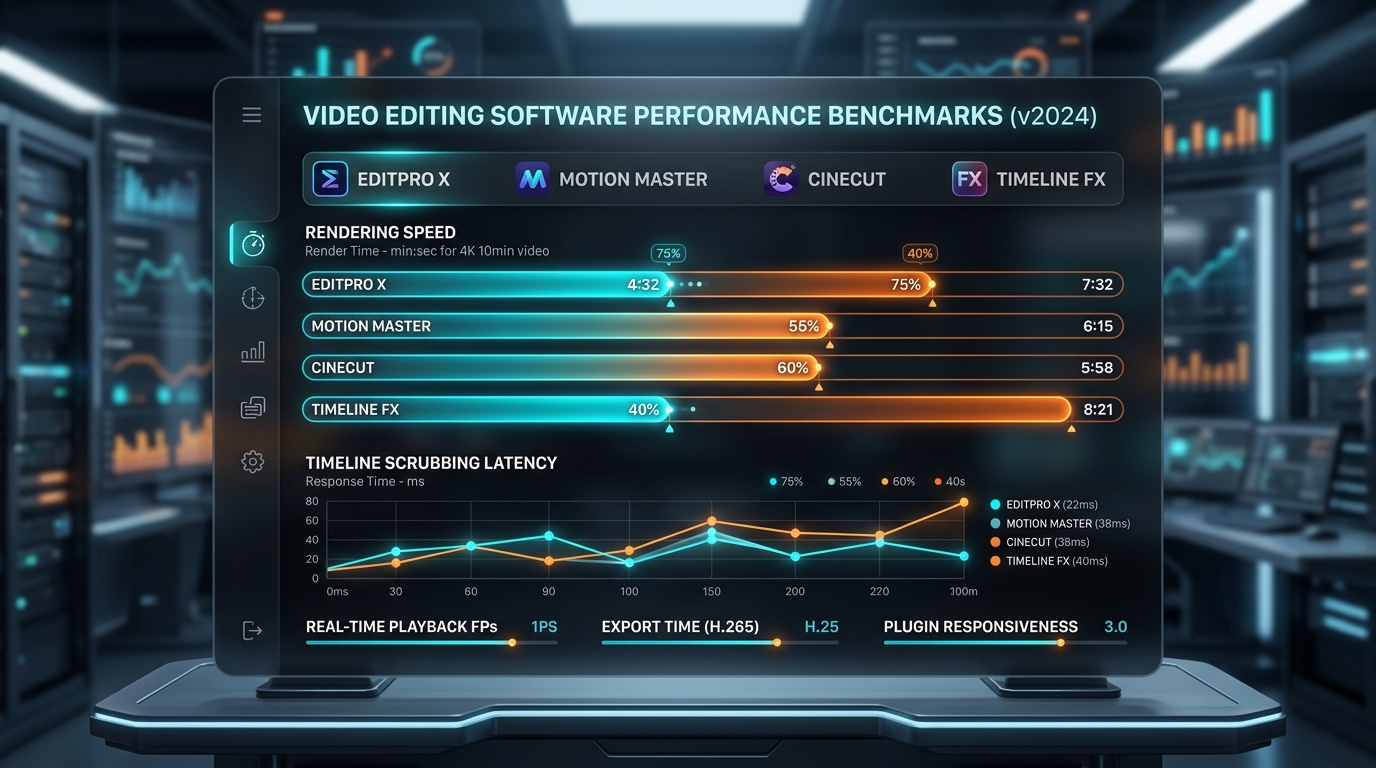
When configuring your editing environment, consider how different engines leverage your central processing unit (CPU) versus graphics processing unit (GPU):
- DaVinci Resolve Performance Profile: Heavily GPU-dependent. It demands modern graphics architecture (NVIDIA RTX 30/40 series, AMD Radeon RX 6000/7000, or Apple Silicon M-Series chips) and at least 4GB of dedicated VRAM for 1080p timelines, expanding to 8GB+ for 4K video. If your machine meets these specifications, playback is silky smooth.
- CapCut Desktop Profile: Highly optimized for consumer hardware. Utilizes CPU-level Intel QuickSync and basic hardware acceleration to provide instant timeline scrubbing even on laptops with integrated Intel Iris Xe or AMD Radeon graphics.
- Shotcut & Kdenlive Architecture: Open-source engines that utilize FFmpeg libraries. They are exceptionally light on operating system resources and run cleanly on older machines with as little as 4GB to 8GB of RAM, although complex multi-layered timeline rendering relies more heavily on CPU threading.
If your playback stutters when scrubbing high-bitrate 4K footage, do not buy a new computer immediately. Generate half-resolution ProRes or DNxHR proxies inside your editor. You edit with lightweight, hyper-responsive proxy clips, and the software automatically switches back to your pristine full-resolution 4K camera originals during final export.
3. CapCut Desktop: The Speed Demon for Fast-Paced Modern Creators
CapCut Desktop has rapidly evolved from a mobile companion app into a powerhouse desktop editing suite tailored specifically for modern creators producing fast-paced YouTube content, video essays, and synchronized Shorts. Its primary advantage is velocity. Where traditional Hollywood NLEs require multiple clicks and manual masking to accomplish basic tasks, CapCut streamlines daily creator workflows into one-click automated utilities.
The standout feature for YouTubers is automated speech-to-text subtitling. CapCut can transcribe an entire 15-minute voiceover in under twenty seconds, automatically synchronizing animated dynamic captions with customizable fonts, stroke borders, and text tracking. In addition, its magnetic timeline architecture prevents accidental gap desynchronization between audio tracks and video overlays when making rapid jump-cuts.
While CapCut does offer paid “Pro” cosmetic transitions and templates, the core desktop application exports pristine 1080p and 4K MP4/MOV files at up to 60 FPS with zero watermarks. As long as you avoid using explicitly marked Pro stickers or audio filters, your export is 100% free and crystal clean.
4. Shotcut: The Reliable, Ad-Free Open-Source Workhorse
For creators who refuse to create user accounts, dislike proprietary cloud telemetry, or work on legacy hardware, Shotcut represents the gold standard of transparent open-source engineering. Built upon the robust MLT Multimedia Framework and cross-platform FFmpeg libraries, Shotcut runs identically across Windows, macOS, and Linux without installation bloat.
Shotcut’s timeline interface is completely customizable with dockable panels for waveforms, scopes, filters, and track hierarchies. It supports native editing without requiring transcoding—meaning you can drop variable frame rate (VFR) smartphone clips, OBS screen recordings, and professional mirrorless camera files into the same project without crashes or sync drift.
Its filter-stack architecture allows you to chain multiple color grading adjustments, 360-degree video transformations, audio peak limiters, and keyframed text animations seamlessly. Best of all, because it is distributed under the GNU General Public License, every single feature is permanently free, with zero tier restrictions, no accounts required, and unlimited resolution outputs up to 8K.
5. Audio Engineering Essentials: Why Crisp Voiceovers Beat 4K Visuals
A critical mistake made by beginner creators is obsessing over visual resolution while ignoring sound quality. Psychological viewer retention tests consistently demonstrate that audiences will tolerate 720p footage if the spoken audio is rich and intelligible, but will immediately click away from 4K HDR footage if the audio contains harsh reverberation, clipping distortion, or overwhelming background fan hum.
To produce broadcast-standard audio inside your free video editor, configure this essential three-stage mastering chain on your primary vocal track:
- Step 1: High-Pass / Low-Cut Equalization: Apply a high-pass EQ filter cutting frequencies below 80 Hz. This eliminates subsonic air conditioner rumbles, mechanical desk vibrations, and microphone handling thumps without affecting vocal warmth.
- Step 2: Dynamic Range Compression: Apply gentle compression with a 3:1 ratio and a fast attack time. This narrows the volume discrepancy between your loudest enthusiastic moments and your quietest whispers, ensuring consistent listening comfort across smartphones and TV speakers.
- Step 3: Brickwall Peak Limiting: Position a hard limiter at the end of your master output bus set to
-1.0 dBFS. This guarantees your audio peaks never touch digital zero (0 dBFS), completely preventing digital clipping distortion when YouTube applies its automated loudness normalization algorithm (-14 LUFS).
6. Optimal Export Settings for Flawless YouTube Playback
Rendering your masterpiece with incorrect codec containers or insufficient bitrates results in pixelated artifacts, muddy shadow gradients, and washed-out colors once YouTube processes your file through its compression pipeline. To force YouTube’s servers to allocate their superior VP09 or AV01 encoding codecs rather than the low-tier AVC1 compression codec, follow these recommended export guidelines:
• Container: MP4 or MOV (Standard QuickTime)
• Video Codec: H.264 or H.265 (HEVC) with Main / High Profile
• Resolution Strategy: Even if you shoot in 1080p, export your timeline at 2560×1440 (1440p QHD). YouTube automatically grants VP09/AV01 high-bitrate encoding to all videos at 1440p and higher, ensuring razor-sharp clarity on desktop and mobile feeds.
• Target Bitrate: 25 to 30 Mbps for 1080p60; 45 to 55 Mbps for 1440p60; 65 to 80 Mbps for 4K60.
• Audio Specification: AAC-LC stereo, 320 kbps bitrate, 48.000 kHz sampling rate.
Frequently Asked Questions
No. DaVinci Resolve’s free edition never places a watermark on standard exports up to 4K UHD 60fps. Watermarks only appear if you explicitly apply a premium “Studio-only” effect (such as Neural Engine Face Refinement or Lens Flare Studio) to your timeline without owning the Studio license.
Yes, provided you use an editor like CapCut Desktop or generate half-resolution proxy files (ProRes Proxy or DNxHR LB) inside Shotcut or DaVinci Resolve. Editing directly with native 4K h.264/h.265 camera files on 8GB RAM will cause severe playback stuttering and timeline crashes.
CapCut Desktop and OpenShot are by far the easiest for absolute beginners. Both feature intuitive drag-and-drop mechanics, straightforward text titling, and pre-configured export profiles that require zero technical video knowledge.
Yes. Shotcut, Kdenlive, and OpenShot are highly reputable, open-source projects hosted on secure repositories with transparent source code. Always ensure you download them exclusively from their official project websites or trusted repository mirrors.
This common phenomenon, known as the “QuickTime Gamma Shift” (Rec.709 vs Rec.709-A), happens when color space metadata tags are mismatched during export. In DaVinci Resolve, set your Timeline Color Space to Rec.709 (Scene) and your Output Color Space to Rec.709-A to ensure exact color fidelity across macOS Safari, Chrome, and YouTube.