How to Fix Low Microphone Volume in Windows 11 for OBS and Discord (2026)
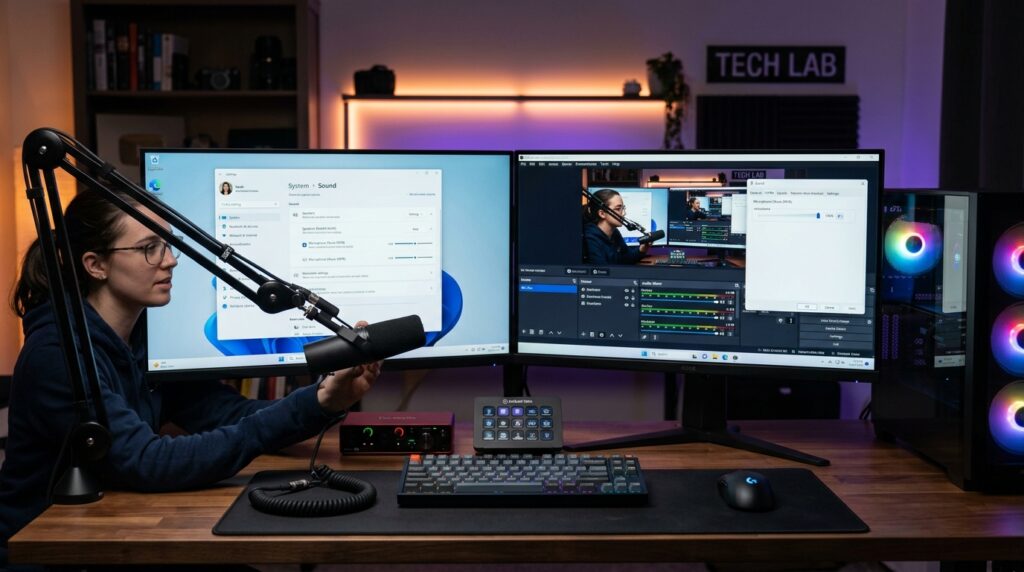
One of the most pervasive, infuriating technical issues facing PC creators, streamers, and remote professionals in 2026 is the sudden, unexplained drop in microphone volume on Windows 11. You plug in a studio-grade USB condenser microphone or a broadcast dynamic mic connected to a dedicated audio interface, only to discover that even with the physical hardware gain cranked to maximum, your voice barely registers on the OBS Studio meter and your friends on Discord complain that you sound like you are whispering from the end of a long hallway.
This problem is rarely caused by a broken microphone capsule or a faulty XLR cable. Instead, it is the direct byproduct of Windows 11’s aggressive background audio architecture—specifically its redesigned audio endpoint stack, automatic signal processing (Audio Enhancements), legacy communications ducking protocols, and driver-level attenuation bugs introduced in recent OS feature updates. In this definitive engineering walkthrough, we break down the 5 root causes of low microphone gain in Windows 11 and provide the step-by-step technical fixes to restore full, punchy broadcast volume across OBS Studio, Discord, and DaVinci Resolve.
Key Takeaways: The Windows 11 Audio Gain Checklist
- Disable “Audio Enhancements” Immediately: Windows 11 applies automated post-processing effects by default on many audio endpoints. This “enhancement” layer frequently misinterprets speech as background noise and digitally clamps input volume by 12 dB to 18 dB.
- The Legacy Sound Control Panel Still Rules: The modern Windows 11 Settings app often fails to update driver-level gain registers. You must access the legacy
mmsys.cplSound Control Panel to verify that your Recording Level is locked to 100%. - Turn Off Windows Communications Ducking: By default, Windows attenuates all recording volume by 80% when it detects active communication activity (like a Discord call or Teams meeting). Setting this to “Do Nothing” is mandatory.
- Uncheck “Allow Applications to Take Exclusive Control”: Competitive multiplayer games and voice chat software often hijack microphone endpoints in Exclusive Mode, silently overwriting your OBS gain calibration.
- Add an OBS Pre-Gain Filter: If your hardware interface operates at nominal broadcast levels (-18 dBFS), adding a clean Gain Filter (+4 dB to +8 dB) in OBS brings your voice into the optimal yellow zone without introducing analog noise.
Understanding Why Windows 11 Throttles Microphone Levels
In older operating systems like Windows 7 and Windows 10, audio drivers communicated directly with the Windows Audio Core through a relatively simple Audio Processing Object (APO) pipeline. In Windows 11, Microsoft overhauled the audio stack to integrate machine-learning voice clarity, spatial audio processing, and automated background noise reduction intended for budget laptop webcams.
When you connect an external USB microphone (such as an Elgato Wave 3, Blue Yeti, or Rode NT-USB+) or an analog audio interface (such as a Focusrite Scarlett or Motu M2), Windows 11 frequently treats the high-end external device as an uncalibrated laptop microphone. It automatically wraps the driver in an Audio Processing Object (APO) wrapper. If the driver does not perfectly match Microsoft’s newest Core Audio specifications, Windows defaults to a defensive -10 dB to -20 dB digital pad to prevent clipping, leaving your microphone severely underpowered.
Fix 1: Disable “Audio Enhancements” in Sound Settings
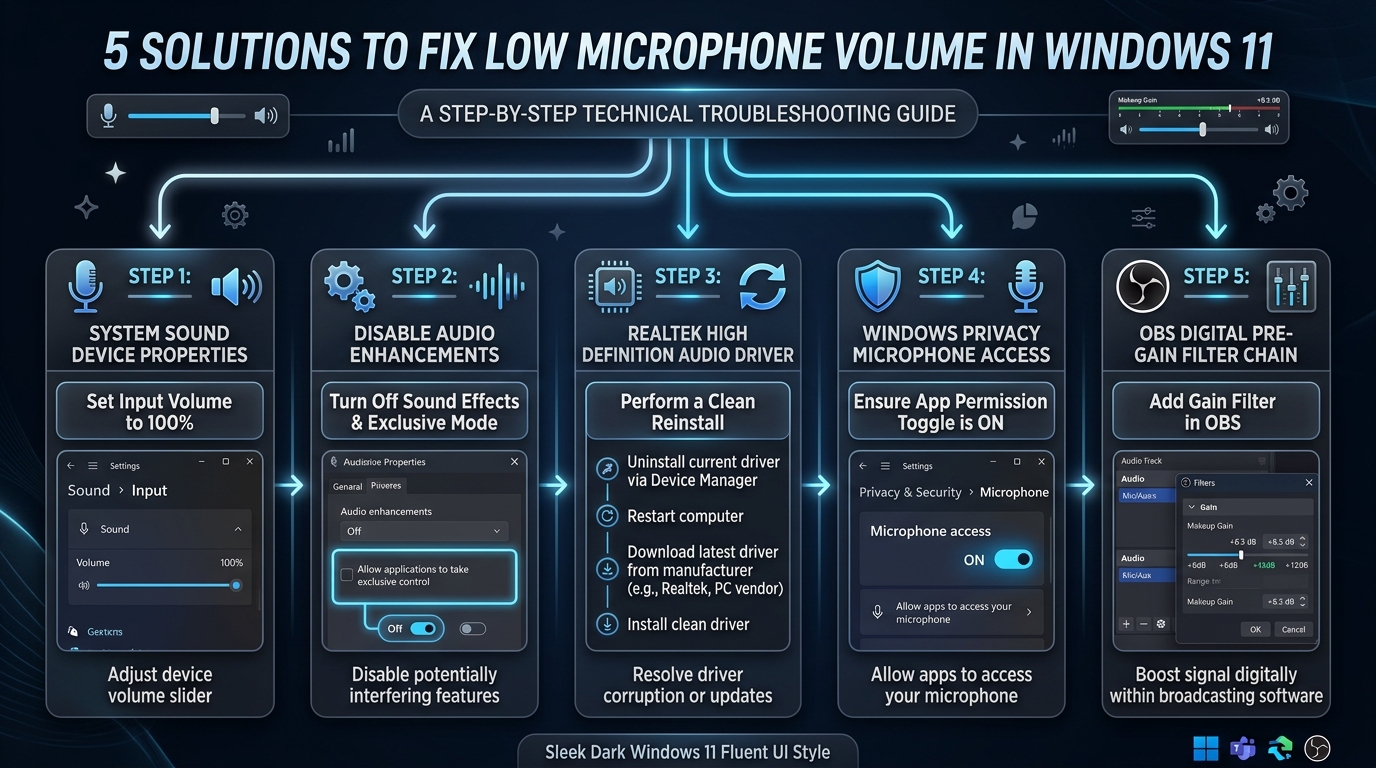
The single most common culprit behind a quiet microphone in Windows 11 is the automated Audio Enhancements setting. When enabled, the OS attempts to suppress background noise and apply automated acoustic echo cancellation. On studio microphones, this algorithm interprets deep vocal formants and room air as noise, aggressively clamping your volume.
Step-by-Step Instructions:
- Press
Windows Key + Ito open the Settings app. - Navigate to System > Sound.
- Scroll down to the Input section and click the arrow next to your active microphone.
- Under Input Settings, check the Volume slider. Ensure it is dragged all the way to 100%.
- Scroll down to Audio enhancements.
- Click the dropdown menu and change it from “Device Default Effects” to “Off”.
- Test your microphone. In over 60% of cases, volume instantly jumps by 10 to 15 decibels.
Fix 2: Maximize Gain in the Legacy Sound Control Panel (mmsys.cpl)
While Windows 11 promotes its sleek Fluent UI Settings page, the modern interface frequently fails to write registry changes to hardware USB controllers. The legacy Control Panel remains the definitive source of truth for audio levels.
How to Access and Configure:
- Press
Windows Key + Ron your keyboard to open the Run dialog. - Type
mmsys.cpland press Enter. This immediately opens the classic Sound Control Panel. - Click on the Recording tab at the top.
- Locate your active microphone (look for the green checkmark indicating the Default Device).
- Right-click your microphone and select Properties.
- Navigate to the Levels tab:
- Ensure the Microphone slider is set to 100.
- If your microphone or sound card includes a Microphone Boost slider (common on 3.5mm headsets and Realtek onboard audio), set it to +10 dB or +20 dB. (Do not set it to +30 dB, as this introduces excessive background hiss).
- Navigate to the Advanced tab:
- Under Default Format, select 2 channel, 24-bit, 48000 Hz (Studio Quality).
- Under Exclusive Mode, UNCHECK both boxes: “Allow applications to take exclusive control of this device” and “Give exclusive mode applications priority”.
- Click Apply and OK.
Fix 3: Disable Windows Communications Auto-Ducking
Windows has an ancient legacy feature designed in the early 2000s for Skype that automatically attenuates background audio whenever Windows detects that the computer is being used to place or receive a telephone call.
Unfortunately, Windows 11 frequently misinterprets Discord voice channels, OBS virtual cameras, Zoom meetings, and even multiplayer game lobbies as incoming phone calls, silently cutting your microphone input volume by up to 80%.
How to Kill Auto-Ducking Forever:
- In the classic Sound Control Panel (opened via
mmsys.cpl), click on the Communications tab on the far right. - You will see the question: “When Windows detects communications activity:”
- By default, Windows selects “Reduce the volume of other sounds by 80%”.
- Select the bottom radio button: “Do nothing”.
- Click Apply and OK.
Fix 4: Reinstall or Update OEM Audio Drivers (Realtek / USB Class)
When Windows 11 performs major semi-annual feature updates (such as 23H2 or 24H2), it frequently replaces high-performance manufacturer audio drivers with generic Microsoft “USB Audio Class 2.0” drivers. Generic drivers lack proper voltage calibration and often lock dynamic microphone gain registers to low sensitivity thresholds.
The Clean Driver Reinstall Protocol:
- Right-click the Start Menu button > select Device Manager.
- Expand the Audio inputs and outputs section.
- Right-click your microphone > select Uninstall device.
- Expand the Sound, video and game controllers section.
- Find your microphone or audio interface (e.g., Focusrite USB Audio, Realtek(R) Audio, Elgato Wave XLR) > right-click > select Uninstall device. (If prompted, check “Attempt to remove the driver for this device”).
- Restart your computer. Upon rebooting, Windows will re-enumerate the USB hardware bus.
- Navigate directly to your manufacturer’s official support website (e.g., Focusrite, Elgato, Rode, Realtek) and download the latest dedicated Windows 11 ASIO / USB Control Panel driver. Install it with administrative privileges.
Fix 5: Optimizing Discord & OBS Studio Input Settings
Once Windows 11 is sending a full, uninhibited signal, you must ensure your client applications are not applying secondary digital attenuation.
Optimizing Discord Voice Settings:
Discord features several internal algorithms that can crush your microphone volume if improperly tuned:
- Input Sensitivity: In Discord Settings > Voice & Video, turn OFF “Automatically determine input sensitivity”. Manually drag the slider to the left (around -55 dB to -50 dB) so Discord does not gate your voice.
- Krisp Noise Suppression: If your microphone is already quiet, Krisp’s aggressive AI filter can interpret low-level speech as noise and mute it. Test with Krisp turned Off or set to “Standard”.
- Advanced Voice Processing: Scroll down and disable “Echo Cancellation” and “Automatic Gain Control” if you are using an external studio microphone. Discord’s automatic gain control constantly hunts for volume, causing your voice to fluctuate unnaturally.
Adding Clean Pre-Gain in OBS Studio:
Professional audio interfaces (such as the Motu M2 or Focusrite Scarlett) are engineered to deliver a nominal signal averaging -18 dBFS in digital software. While this is the correct technical level for Hollywood mixing and DAW mastering, live streaming on YouTube and Twitch demands higher speech loudness (peaking around -6 dBFS).
- In OBS Studio’s Audio Mixer, click the three dots next to your Mic/Aux track > select Filters.
- Click the
+button and add a Gain filter. - Position this Gain filter at the top of your chain (or immediately after your High-Pass filter).
- Set the slider between +4.0 dB and +8.0 dB.
- Watch the OBS mixer meter while speaking naturally: your voice should comfortably bounce in the upper green and solid yellow zone (between -15 dBFS and -8 dBFS).
Windows 11 Microphone Diagnostic Matrix
| Symptom Observed | Probable Root Cause | Immediate Diagnostic Fix |
|---|---|---|
| Mic volume drops by 80% when opening a game or Discord | Windows Communications Ducking | Set mmsys.cpl Communications tab to “Do Nothing”. |
| Voice sounds muffled, quiet, and robotic in all apps | Windows 11 Audio Enhancements | Toggle “Audio enhancements” to OFF in System > Sound. |
| Game audio cuts mic input completely | Exclusive Mode Hijacking | Uncheck “Allow applications to take exclusive control”. |
| Mic slider reverts back to 50% automatically | Discord or Skype Auto Gain Control | Disable “Automatic Gain Control” in app voice settings. |
| Hardware knob is at 100% but signal is -30 dBFS | Low Sensitivity Mic (e.g., SM7B) on budget preamp | Add an in-line mic booster (Cloudlifter/FetHead) or upgrade interface. |
Frequently Asked Questions (FAQ)
Why does my microphone volume randomly reset to 50% in Windows 11?
This is almost always caused by third-party voice communication software with “Automatic Gain Control” (AGC) enabled. Applications like Discord, Steam Voice, Skype, and Zoom have internal daemons that actively poll and modify the Windows master recording fader. If you speak loudly once, the software automatically turns down your Windows microphone slider to 50%. Disable Automatic Gain Control in all communication apps to prevent external software from changing your Windows master volume.
Can a front-panel USB port cause low microphone volume?
Yes. Front-panel computer case USB ports are connected to the motherboard via long, unshielded internal ribbon cables that often suffer from significant electrical voltage drops and electromagnetic interference (EMI). High-performance USB microphones and bus-powered audio interfaces require a stable, full 5V / 500mA USB power rail. Always plug your audio gear directly into the rear motherboard I/O panel, ideally using a dedicated USB 3.0/3.1 port (blue or red port).
Does Equalizer APO work on Windows 11 to boost microphone volume?
Yes. Equalizer APO is an open-source parametric equalizer and preamplification utility for Windows that operates directly at the audio driver level. If your hardware is quiet and Windows lacks a native boost slider, you can install Equalizer APO on your recording device and add a clean Preamp: +6.0 dB or +10.0 dB line in your configuration file. However, ensure “Disable Audio Enhancements” is not blocking the APO engine.
What is the difference between Microphone Volume and Microphone Boost?
Microphone Volume controls the standard digital attenuation level of the Windows audio pipeline (scaled from 0 to 100). Microphone Boost is an analog operational amplifier circuit built into onboard sound cards (like Realtek) that applies hardware gain steps (+10 dB, +20 dB, +30 dB) before the signal reaches the analog-to-digital converter. Professional USB microphones and external audio interfaces do not have a Microphone Boost slider in Windows because analog gain is controlled via the physical knob on the hardware device itself.
Why is my microphone loud in Windows test but quiet in OBS Studio?
OBS Studio utilizes a logarithmic decibel scale (dBFS), whereas the Windows 11 Sound Settings test uses an arbitrary percentage meter (0% to 100%). In Windows, a signal that hits -18 dBFS may display as “80% volume”, giving the illusion of loud audio. In OBS Studio, -18 dBFS sits comfortably in the upper green zone. To bring that sound up to commercial streaming standards, add a Gain filter (+4 dB to +6 dB) in OBS to push your dialogue into the yellow broadcast zone (-12 dBFS to -6 dBFS).