How to Create a 3D Pop-Out Effect in YouTube Thumbnails (2026)
When you look at the highest-performing thumbnails from top creators like MrBeast, MKBHD, Ali Abdaal, and leading gaming and documentary channels, one visual characteristic instantly distinguishes them from amateur designs: tangible three-dimensional depth. Their subjects, graphics, and typography do not look like flat 2D stickers pasted onto a photograph. Instead, characters seem to physically break through the borders of the thumbnail canvas, casting realistic contact shadows onto background environments and weaving in front of and behind massive 3D text.
This optical illusion—known in design as the 3D Pop-Out Effect (or “Frame-Breaking Depth”)—tricks the human visual cortex into registering simulated stereoscopic depth on a flat smartphone screen. It commands immediate visual priority on dense mobile recommendation feeds. In this comprehensive step-by-step masterclass, we guide you through the exact Adobe Photoshop and design workflows required to extract subjects with razor-sharp masks, construct multi-layer text occlusion, paint realistic light wraps and contact shadows, and craft a thumb-stopping 3D pop-out effect in 2026.
Key Takeaways: The 3D Pop-Out Architecture
- The Principle of Visual Occlusion: True 3D depth is communicated through layer overlap (occlusion). By placing bold typography behind the creator’s head or shoulders but in front of the background, the viewer’s brain instantly perceives three distinct spatial planes.
- The Frame-Break Illusion: Creating a subtle inner border or graphic phone/screen frame and having the subject’s head, hand, or weapon extend outside that boundary tricks the eye into perceiving physical projection beyond the screen.
- Contact Shadows vs. Cast Shadows: A floating drop shadow looks amateurish. True physical realism requires a tight, dark “contact shadow” where surfaces touch, paired with a soft, diffused “cast shadow” that expands outward.
- Light Wraps & Rim Lighting: Extracting a subject always leaves harsh edge halos. Painting a subtle light wrap (sampling the background lighting and blending it over the subject’s outer silhouette) binds the subject organically into the 3D scene.
- Micro-Contrast & Local Clarity: Enhancing the subject’s midtone contrast (via High Pass or Camera Raw Clarity) while softening the background with a 6px lens blur amplifies perceived depth by over 200%.
The Science of Visual Occlusion and Depth Cues
Because computer and smartphone screens are flat two-dimensional surfaces, human depth perception relies on secondary “monocular depth cues” to construct a mental model of distance. The brain evaluates four visual parameters:
- Interposition (Occlusion): When Object A partially blocks the view of Object B, the brain concludes with 100% certainty that Object A is physically closer to the observer.
- Relative Size & Perspective: Objects positioned closer to the camera appear disproportionately larger than background objects. Exaggerating wide-angle lens distortion (e.g., reaching a hand or product toward the camera) enhances this dynamic scale.
- Atmospheric Perspective (Aerial Haze): Distant objects lose contrast, sharpness, and color saturation. Softening and slightly desaturating background layers pushes them deeper into the background.
- Cast Lighting and Shadows: How light wraps around the subject’s contours and casts shadows onto surrounding surfaces tells the brain where the light source is located and how far the object hovers above the floor.
Step-by-Step Photoshop Workflow: Building the 3D Pop-Out
Follow this exact professional sequence in Adobe Photoshop (or equivalent editors like Photopea, Affinity Photo, or GIMP):
Step 1: Canvas Setup & Grid Guidelines
Create a new document at 1920×1080 pixels with a resolution of 72 DPI (or 300 DPI for high-DPI scaling) and color profile set strictly to sRGB IEC61966-2.1. Fill the background layer with neutral dark charcoal (#0F0F0F) to simulate YouTube’s dark mode environment.
Step 2: Clean Subject Extraction (Masking)
Place your raw photograph or subject layer onto the canvas:
- Use Select Subject > Cloud (Detailed Results) to generate an initial selection.
- Enter the Select and Mask workspace. Use the Refine Edge Brush (radius 2px to 4px) along flyaway hair strands to separate hair cleanly from the original background.
- Set Output To: New Layer with Layer Mask.
- Inspect the edges. If there are unwanted color fringes from the original room lighting, navigate to Layer > Matting > Defringe (1px) to eliminate edge bleed.
Step 3: Background Preparation & Depth Separation
Place your background image (studio room, cityscape, or abstract gradient) on a layer directly beneath your masked subject:
- Apply Filter > Blur > Tilt-Shift Blur (or Lens Blur) with a radius of 6px to 10px. This simulates a high-end f/1.8 cinema lens aperture.
- Add a Curves Adjustment Layer clipped to the background. Drag the midpoint down to darken the background by roughly 1 to 1.5 stops. This ensures your foreground subject will burst forward in luminance.
Step 4: Creating the “Interpositioned” 3D Text
This is where the magic happens. We will place massive bold typography between the background and the foreground subject:
- Create a text layer positioned directly beneath the extracted subject layer but above the background layer.
- Use an ultra-heavy, condensed typeface such as Montserrat Black, Impact, or Bebas Neue. Set the font size large enough that letters span across the center of the canvas.
- Notice how the subject’s head, shoulder, or arm naturally overlaps portions of the letters. The viewer’s brain instantly reads the words while registering that the subject is standing in front of physical, massive 3D letters.
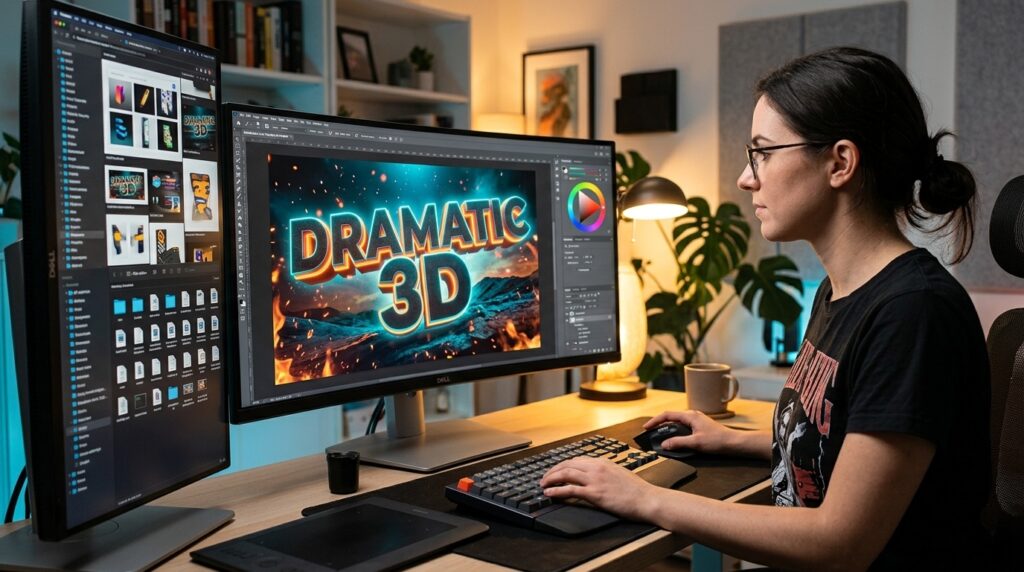
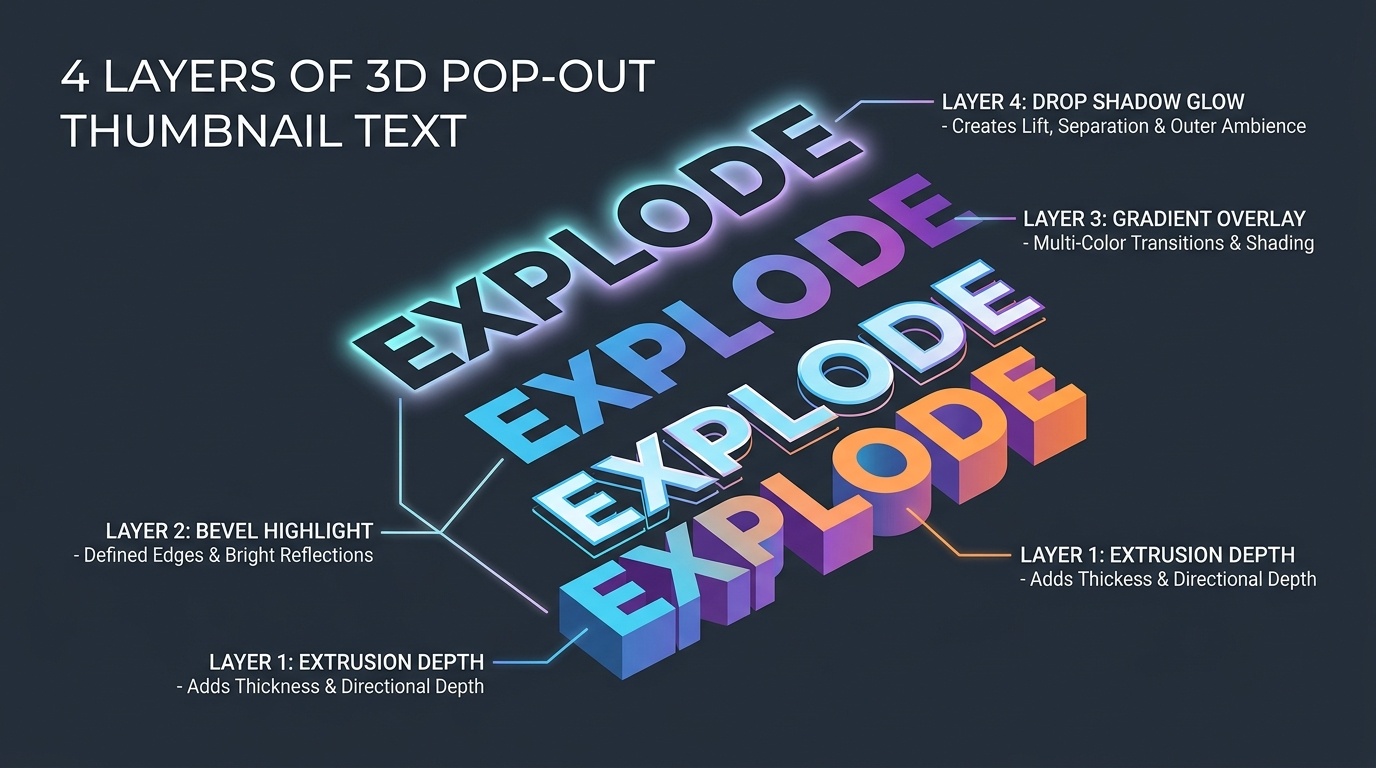
- To enhance 3D extrusion, double-click the text layer to open Layer Styles. Add a subtle Bevel and Emboss (Style: Inner Bevel, Depth: 120%, Size: 4px, Soften: 1px) and an Inner Shadow to give the letters volumetric thickness.
Step 5: Realistic Contact Shadows and Ambient Occlusion
A floating subject looks like a cheap sticker. You must anchor the subject into the 3D space:
- Create a new blank layer directly behind the subject’s mask, set its Blend Mode to Multiply.
- Contact Shadow: Using a soft black round brush (Opacity 70%, Flow 40%), paint a tight 4px dark shadow directly where the subject touches or overlaps the text and background surfaces. This is called “ambient occlusion.”
- Cast Shadow: On a second Multiply layer, paint a broader, softer shadow (Opacity 35%, Blur 15px) extending in the direction opposite your key light source.
Step 6: Painting the Light Wrap & Artificial Rim Light
To make the subject look like they exist inside the scene’s lighting environment rather than a sterile studio cutout:
- Create a new layer on top of the subject layer. Right-click and choose Create Clipping Mask. Set the blend mode to Screen or Color Dodge.
- Hold
Alt/Optionand sample the brightest accent color from your background or 3D text (e.g., vibrant cyan or warm amber). - Using a large, soft brush (Hardness 0%, Opacity 25%), gently paint along the outer contours of the subject’s shoulders, hair, and jawline. This creates an optical light bleed that naturally wraps around the subject’s silhouette.
Comparison: Flat 2D Design vs. 3D Pop-Out Design
| Design Parameter | Standard Flat 2D Thumbnail | 3D Pop-Out Multi-Plane Thumbnail |
|---|---|---|
| Spatial Planes | Single flat plane; text and subject fight for space | Three distinct planes: Foreground, Subject, Background |
| Text Placement | Pasted directly on top, obscuring facial features | Interpositioned behind subject with subtle occlusion |
| Shadow Mechanics | Generic circular drop shadow; looks detached | Layered contact occlusion + atmospheric cast shadows |
| Edge Integration | Harsh jagged cutout with green/white fringing | Soft light wraps, clean hair masks, rim light painting |
| Mobile Visual Pop | Blends into competing video feeds | Leaps forward off dark mode backgrounds; high CTR |
The “Frame Break” Technique: Breaking the Borders
To push the 3D effect to its absolute maximum, use the Frame Break illusion. Draw a crisp rectangular vector shape or polaroid frame that occupies 80% of the canvas. Mask the frame so that the subject’s torso is inside the frame, but their head, arm, or a prop (such as a camera lens, microphone, or sword) crosses over the top or side border into the black canvas margin.
When rendered in the YouTube feed, the human eye interprets the rectangular border as the physical “window” of the screen. Because an object crosses that boundary, the brain registers that the object has physically exited the screen toward the viewer. This single composition trick frequently lifts CTR by 15% to 25% on review and tutorial content.
Final Polish: Camera Raw Color Grading and Sharpening
Once all 3D layers, shadows, and light wraps are assembled, merge a stamped copy of your visible layers to the very top of your stack (Ctrl + Alt + Shift + E on Windows, Cmd + Option + Shift + E on Mac):
- Convert this stamped layer to a Smart Object.
- Open Filter > Camera Raw Filter.
- Under Basic, boost Clarity by +10 and Dehaze by +5 to enhance micro-contrast along edges.
- Under Detail, set Sharpening to 45 (Radius: 1.0, Masking: 35 to sharpen only high-contrast edges without exaggerating skin noise).
- Click OK and export your final file as an optimized 1920×1080 JPEG at quality 90 to 95, ensuring the final file size remains below 2MB.
Frequently Asked Questions (FAQ)
Do I need expensive 3D software like Cinema 4D or Blender to do this?
No. While 3D software is helpful for complex metallic textures or procedural geometry, over 95% of top YouTube 3D thumbnail effects are created entirely in 2D raster editors like Photoshop using layer masks, bevel styles, and directional brush shading.
Can I achieve the 3D pop-out effect in free software like Photopea or GIMP?
Yes! Photopea (which runs directly in any web browser at photopea.com) features identical layer masking, blending modes (Multiply/Screen), and layer style dialogs (Bevel and Emboss, Drop Shadow) as Adobe Photoshop, allowing you to execute this exact workflow with zero software cost.
How much blur should I apply to the background?
A Gaussian or Lens blur between 5px and 10px at 1080p resolution is optimal. If you blur the background too heavily (e.g., 30px+), the environment turns into an unrecognizable color gradient and loses all contextual storytelling value.
Why do my contact shadows look muddy or gray?
Never paint shadows on a layer set to Normal blend mode. A normal black brush paints flat dark pixels that wash out underlying colors. Always set shadow layers to Multiply, which mathematically multiplies the darkness value into the underlying texture, preserving saturation and physical realism.
Will 3D pop-out thumbnails get penalized for misleading packaging?
No. 3D depth and frame-breaking are creative graphic design and composition techniques, not deceptive practices. As long as the subject and text accurately reflect the core premise and content of your video, YouTube’s algorithm enthusiastically rewards high-CTR, high-engagement creative packaging.