How to Fix OBS Audio Out of Sync in DaVinci Resolve (CFR & Remux Guide 2026)
Few technical bottlenecks in modern video production are as maddening as recording an hour-long podcast, tutorial, or gameplay capture in OBS Studio, only to drop the footage into DaVinci Resolve and discover that the audio gradually drifts out of sync. At minute two, lips and dialogue align perfectly. By minute twenty, the audio is trailing by several frames. By minute forty-five, the speech precedes or lags the video by a full second or more. Attempting to chop up the audio track manually every thirty seconds is exhausting, inaccurate, and destroys production velocity.
The root cause of this persistent issue is rarely a hardware defect or a glitch in DaVinci Resolve. Instead, it stems from a fundamental conflict between how open-source capture software writes video frames and how professional non-linear editors (NLEs) process timecode. In this comprehensive technical guide, we break down the engineering mechanics of Variable Frame Rate (VFR) vs. Constant Frame Rate (CFR), examine container timestamp headers in MKV and MP4 files, and provide the exact 2026 workflow to eliminate audio desync forever without quality degradation or lengthy transcoding times.
Key Takeaways: The OBS to DaVinci Audio Sync Stack
- The Root Culprit is Variable Frame Rate (VFR): OBS Studio defaults to dynamic rate control under system load, dropping or delaying frames. DaVinci Resolve expects an unyielding Constant Frame Rate (CFR), causing timecode drift over long recordings.
- Never Record Directly to MP4: Recording directly to MP4 in OBS risks catastrophic file corruption during blue screens or power cuts, and exacerbates timecode desync. Always record to .MKV and configure Auto-Remux.
- Sample Rate Parity (48 kHz Standard): Ensure Windows Sound Settings, OBS Studio Audio, and DaVinci Resolve Project Settings are all locked to exactly 48,000 Hz (48 kHz). Sample rate mismatches (44.1 kHz vs 48 kHz) create micro-drift.
- Zero-Transcode Remuxing: Remuxing MKV to MP4 takes mere seconds because it merely rewrites container metadata headers without re-encoding video streams or degrading visual bitrate.
- Fairlight Sub-Frame Alignment: For minor fixed offsets, DaVinci Resolve’s Fairlight engine allows microsecond-level audio nudging down to 1/100th of a frame.
Understanding Why OBS Recordings Drift in DaVinci Resolve
To permanently solve audio desync, one must first understand how OBS Studio packages multimedia packets into file containers. Unlike hardware capture cards that enforce rigid broadcast standards, OBS Studio is designed to keep recording even when your graphics card or processor faces extreme compute spikes.
When you record a resource-intensive desktop application, a 4K game, or a multi-camera scene, the GPU encoder may momentarily stutter. To prevent the recording from crashing, OBS uses Variable Frame Rate (VFR) compression. If your target is 60 fps, OBS might deliver 59.94 frames in one second, 58.2 frames in the next, and 60.1 frames during an idle screen. OBS adjusts the timestamp headers on individual video frames while maintaining a steady 48 kHz audio clock.
Media players like VLC or Windows Media Player dynamically adapt to these fluctuating timestamps on the fly. However, Blackmagic DaVinci Resolve is a professional Hollywood-grade NLE. Resolve builds an internal timeline based strictly on fixed frames per second (Constant Frame Rate, CFR). When Resolve encounters a video stream where frame durations vary while audio samples remain linear, its playback engine gradually decouples the audio track from the video track. The longer the timeline, the worse the desynchronization becomes.
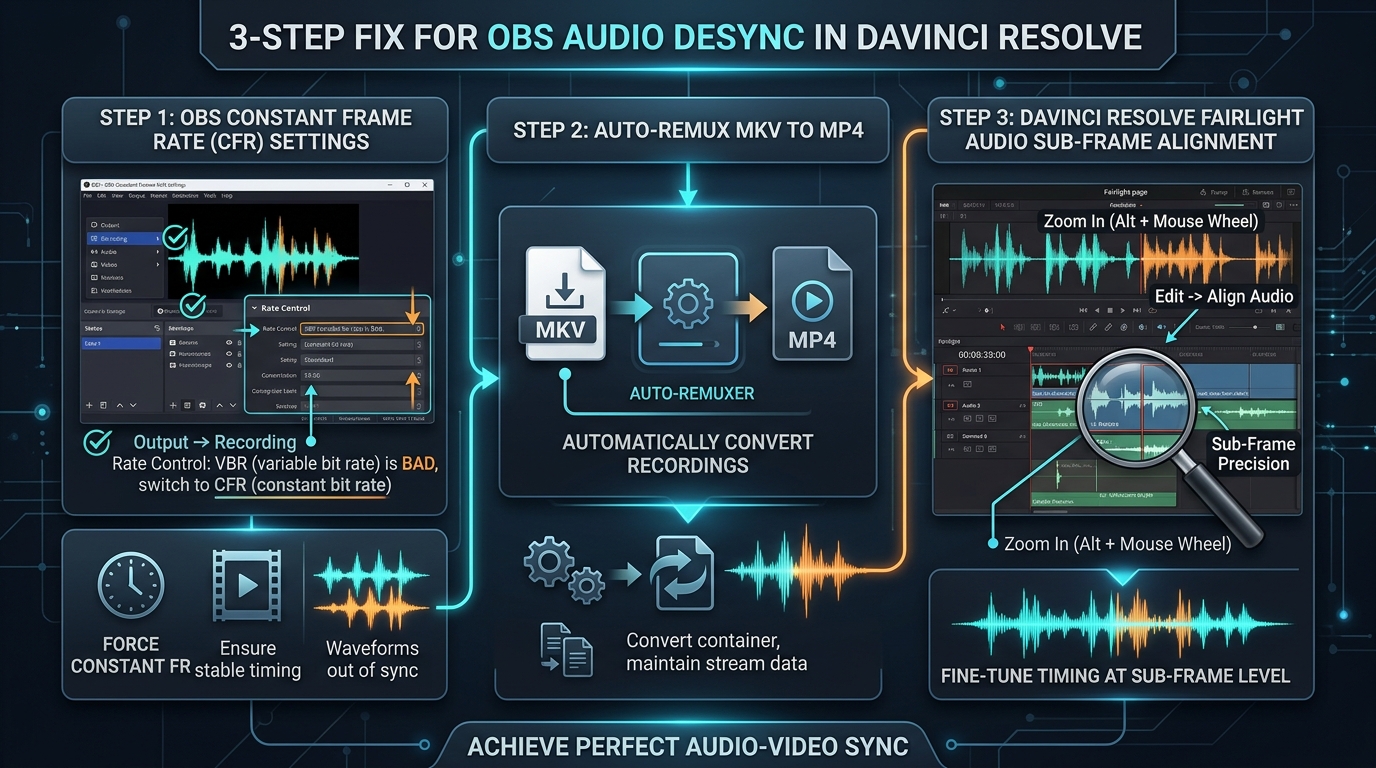
Step 1: Configure OBS Studio for Constant Frame Rate (CFR) Stability
The first defensive layer against audio drift is tuning your OBS video and output settings to ensure the encoder outputs rock-solid constant frame timing.
1. Enforce Integer FPS Values
Navigate to Settings > Video inside OBS Studio. By default, OBS may be set to “Common FPS Values: 60” or fractional standards like “59.94 NTSC”. Fractional frame rates are a frequent trigger for desync in DaVinci Resolve when the project timeline is set to whole 60.00 fps.
- Set Base (Canvas) Resolution to your native monitor resolution (e.g., 1920×1080 or 2560×1440 or 3840×2160).
- Set Output (Scaled) Resolution to match your Base resolution to avoid software bicubic scaling overhead.
- Change FPS Type from “Common FPS Values” to “Integer FPS Value” and set it explicitly to
60(or30).
2. Lock Encoder Rate Control
Navigate to Settings > Output and set the Output Mode dropdown from “Simple” to “Advanced”. Under the Recording tab:
- Type: Standard
- Recording Format: Matroska Video (.mkv)
- Video Encoder: Select your hardware acceleration chip—NVIDIA NVENC H.264/AV1, AMD HW H.264/HEVC, or Intel QuickSync. Do not use software (x264) unless your GPU lacks dedicated encoding silicon.
- Rate Control: Switch from VBR (Variable Bitrate) to CBR (Constant Bitrate) or CQC / CQP (Constant Quantization Parameter). For pure recording, CQP with a level of
18to20yields pristine visually lossless quality while keeping frame pacing stable. - Keyframe Interval: Change from
0 s (auto)to exactly2 s. Setting explicit keyframes every 2 seconds gives DaVinci Resolve regular I-frame anchor points, preventing timecode calculation errors.
Step 2: The Matroska Container (.MKV) & Auto-Remux Architecture
One of the most dangerous rookie mistakes in content creation is configuring OBS to record directly into .mp4 containers. While MP4 files import natively into DaVinci Resolve without extra steps, MP4 file headers require final finalization when the recording stops. If your PC loses power, your GPU drivers crash, or OBS hangs, the entire MP4 file becomes permanently corrupted and unrecoverable.
Furthermore, OBS’s direct MP4 muxer writes interleaved audio-video chunks that are prone to packet jitter. The professional industry standard is to record into Matroska (.mkv).
How to Enable OBS Auto-Remux to MP4
MKV files record streams packet-by-packet in real time. If your system crashes at minute 59, every millisecond up to the exact crash moment is preserved safely on your drive. Because DaVinci Resolve’s native MKV support can occasionally exhibit erratic audio track reading depending on your OS version, you should let OBS automatically convert your MKV into an MP4 immediately upon hitting “Stop Recording”.
- Inside OBS Studio, click on
Settings > Advanced. - Scroll down to the Recording section.
- Check the box that says “Automatically remux to mp4”.
- Click Apply and OK.
Because remuxing does not re-encode your video pixels or audio waveforms, it does not tax your CPU or GPU. A two-hour 4K recording is remuxed from MKV to MP4 in roughly 5 to 10 seconds, creating a standardized, clean MP4 container with synchronized timestamp headers ready for DaVinci Resolve.
Step 3: Eliminate Sample Rate Mismatches (48,000 Hz Standard)
While frame rate discrepancies cause large, noticeable drift, audio sample rate mismatches cause a subtle, insidious form of desync known as clock slippage. If an audio track recorded at 44.1 kHz is ingested into a 48 kHz project timeline without proper resample flags, the audio will slip out of alignment by roughly 1 second every 11 to 12 minutes.
The Universal 48 kHz Checklist
In modern video editing, 48 kHz (48,000 samples per second) is the unyielding broadcast and YouTube standard. You must ensure parity across your entire audio chain:
| System Level | Required Configuration | Why It Matters |
|---|---|---|
| Windows OS Sound Settings | 24-bit, 48000 Hz (Studio Quality) | Prevents Windows audio mixer from applying real-time software resampling artifacts. |
| OBS Studio Audio | Sample Rate: 48 kHz (Settings > Audio) |
Locks OBS’s audio buffer clock to standard video frame timecodes. |
| Audio Interface Hardware | Hardware clock locked to 48 kHz in ASIO driver control panel | Stops USB buffer under-runs that drop audio packets during heavy GPU rendering. |
| DaVinci Resolve Timeline | Project Settings > Fairlight > Sample Rate: 48000 Hz | Guarantees 1:1 sample mapping on every video frame boundary. |
Diagnosing Your Desync Type: Fixed Delay vs. Gradual Drift
Before applying software fixes, you must identify which type of audio desync you are dealing with. The troubleshooting methodology depends entirely on this distinction.
Case A: Fixed Offset (Constant Delay)
The audio is delayed by the exact same amount at the beginning of the video (00:01) as it is at the end of the video (45:00). For example, your mouth moves, and the sound arrives exactly 150 milliseconds later throughout the entire recording.
Cause: Hardware latency between your USB webcam/camera HDMI capture card and your microphone.
Fix: Applying a Sync Offset (ms) in OBS Studio’s Advanced Audio Properties.
Case B: Gradual Drift (Compounding Delay)
The video starts perfectly in sync. By minute 10, it is slightly off. By minute 30, it is noticeable. By minute 60, it is completely unwatchable.
Cause: Variable Frame Rate (VFR) timestamps or mismatched sample rates (44.1 kHz vs 48 kHz).
Fix: Handbrake / FFmpeg constant frame rate conversion or DaVinci Resolve Elastic Wave re-timing.
How to Calculate and Fix Fixed Latency in OBS (Sync Offset)
If you suffer from Case A (Fixed Offset), your camera processing delay is out of phase with your microphone audio. Webcams and HDMI capture cards introduce between 80ms and 250ms of hardware latency as their internal DSP processes image sensors, whereas an analog microphone connected to an audio interface transmits audio in under 5 milliseconds.
The Clapperboard / Hand-Clap Test
- In your recording scene, start recording in OBS.
- Hold your hands in full view of the camera and clap loudly once. Repeat three times.
- Stop the recording and import the clip into DaVinci Resolve.
- Zoom into the timeline until you can see both the individual video frames and the audio waveform peaks.
- Find the exact video frame where your palms physically make contact.
- Look at the audio track underneath: does the audio transient spike happen before or after the visual contact?
- Count the difference in frames or milliseconds. At 60 fps, each video frame is equal to
16.67 milliseconds. If the audio spike appears 6 frames before your hands touch, your audio is 100 milliseconds ahead of your video.
Applying the Offset in OBS
In OBS Studio’s Audio Mixer dock, click the gear icon (or right-click) next to your microphone and select Advanced Audio Properties. Find your microphone track and enter your calculated number into the Sync Offset (ms) box. If your audio is arriving ahead of your video, enter a positive value (e.g., 100 ms). OBS will hold your mic audio in a tiny RAM buffer and release it in perfect synchronization with your video frames.
Fixing Existing Desynced Footage in DaVinci Resolve
What if you already recorded a critical interview or presentation and cannot re-record it? You can rescue the footage using DaVinci Resolve’s native post-production tools.
Method 1: Change Clip Attributes Frame Rate
If DaVinci Resolve misread a 59.94 fps recording as 60.00 fps, you can force the clip to its native mathematical timebase:
- In the DaVinci Resolve Media Pool, right-click the offending clip.
- Select Clip Attributes…
- Under the Video tab, look at Video Frame Rate.
- If it is set to 60, change it to
59.94(or vice versa). - Click OK. Check the timeline to see if the drift has flattened out.
Method 2: Fairlight Sub-Frame Audio Editing
On standard edit timelines, snapping forces audio cuts to stick to full video frame boundaries (e.g., 1/60th or 1/30th of a second). In music videos or dialogue editing, that 16ms window can still feel slightly disconnected. To achieve sample-accurate alignment:
- Click on the Fairlight tab at the bottom of DaVinci Resolve.
- Unlink the audio and video tracks by clicking the Link Selection icon (or pressing
Ctrl + Shift + L). - Zoom into the audio waveform until individual milliseconds are visible.
- Hold down
Alt(Option on Mac) and drag the audio clip. In Fairlight, audio can be dragged at sub-frame precision down to individual audio samples (1/48,000th of a second).
Method 3: Elastic Wave Re-timing (For Linear VFR Drift)
If the footage gradually drifts over an hour due to VFR, Fairlight’s built-in time-stretching algorithm can lock it back into place without altering vocal pitch:
- In Fairlight, right-click the audio clip and select Elastic Wave.
- Move the playhead to the beginning of the video and add a warp marker by double-clicking on a visible plosive or clapped sound.
- Move the playhead to the very end of the recording (e.g., minute 50) and locate a distinct vocal transient (like a “T” or “P” sound) or action sound.
- Double-click on that transient to add a second warp marker.
- Drag that marker until the audio spike sits directly beneath the matching video frame. DaVinci Resolve will smoothly compress or expand the audio track proportionally across the entire 50-minute timeline while maintaining 100% pitch stability.
The Definitive OBS to DaVinci Resolve Checklist
| Setting / Feature | Unstable (Prone to Desync) | Recommended (Rock-Solid Sync) |
|---|---|---|
| Recording Container | Direct to MP4 / MOV | MKV + Auto-Remux to MP4 |
| Frame Rate Mode | Fractional / VFR (Dynamic) | Integer Constant FPS (60.00) |
| Rate Control | VBR (Variable Bitrate) | CQP (Level 18-20) or CBR |
| Audio Sample Rate | Mixed (44.1 kHz / 48 kHz) | 48,000 Hz Across Entire Chain |
| Keyframe Interval | 0 s (Auto / Irregular) | Explicit 2 Seconds |
Frequently Asked Questions (FAQ)
Does remuxing an MKV file to MP4 in OBS reduce video quality?
No. Remuxing does not re-encode or compress your video. A container remux simply unpacks the raw H.264, HEVC, or AV1 video bitstream and AAC audio packets from the Matroska (.mkv) wrapper and repackages them into an MPEG-4 (.mp4) wrapper. The visual bitrate, color depth, and resolution remain 100% bit-for-bit identical, and the process completes in seconds.
Why does my video play in sync in VLC Media Player but drifts in DaVinci Resolve?
Media players like VLC are built for playback tolerance. VLC dynamically reads presentation timestamps (PTS) and drops or stretches display frames on the fly to match the incoming audio stream. DaVinci Resolve, by contrast, is a timeline-based non-linear editor that enforces strict mathematical timecode. If your recording has dropped frames or inconsistent frame intervals (VFR), Resolve’s fixed timeline clock will inevitably drift apart from the audio track.
Can Handbrake permanently fix variable frame rate footage for DaVinci Resolve?
Yes. If you have older footage that suffers from severe erratic frame pacing, you can re-encode it using Handbrake. Under the Video tab in Handbrake, select your target frame rate (e.g., 60 fps) and explicitly check the radio button for “Constant Framerate (CFR)”. Using the Production Standard or Fast 1080p30 preset will produce a pristine CFR file that imports into DaVinci Resolve with zero audio slippage.
What should my audio buffer size be in OBS Studio?
Under Settings > Audio > Advanced, leave the Audio Monitoring Device on your primary interface and ensure “Disable Windows audio ducking” is checked. You do not need large manual audio buffers if your sample rate is locked to 48 kHz. However, if your USB microphone disconnects or drops packets under heavy CPU load, increasing audio process priority in Windows Task Manager to “Above Normal” ensures audio packets are never dropped.
How do I separate game audio and microphone audio in OBS so they don’t drift together?
Under Settings > Output > Recording, you can enable multiple audio tracks (e.g., Track 1 for Game/System Audio, Track 2 for Microphone, Track 3 for Discord). In the Audio Mixer, click the gear icon and select Advanced Audio Properties. Check only Track 1 for your Desktop Audio and Track 2 for your Mic. When you import the remuxed MP4 into DaVinci Resolve, each audio source will appear on its own isolated audio track, allowing you to edit, level, and align them independently.